
Corporate Event Video Playback: Millumin, Mitti and Modern Media Servers
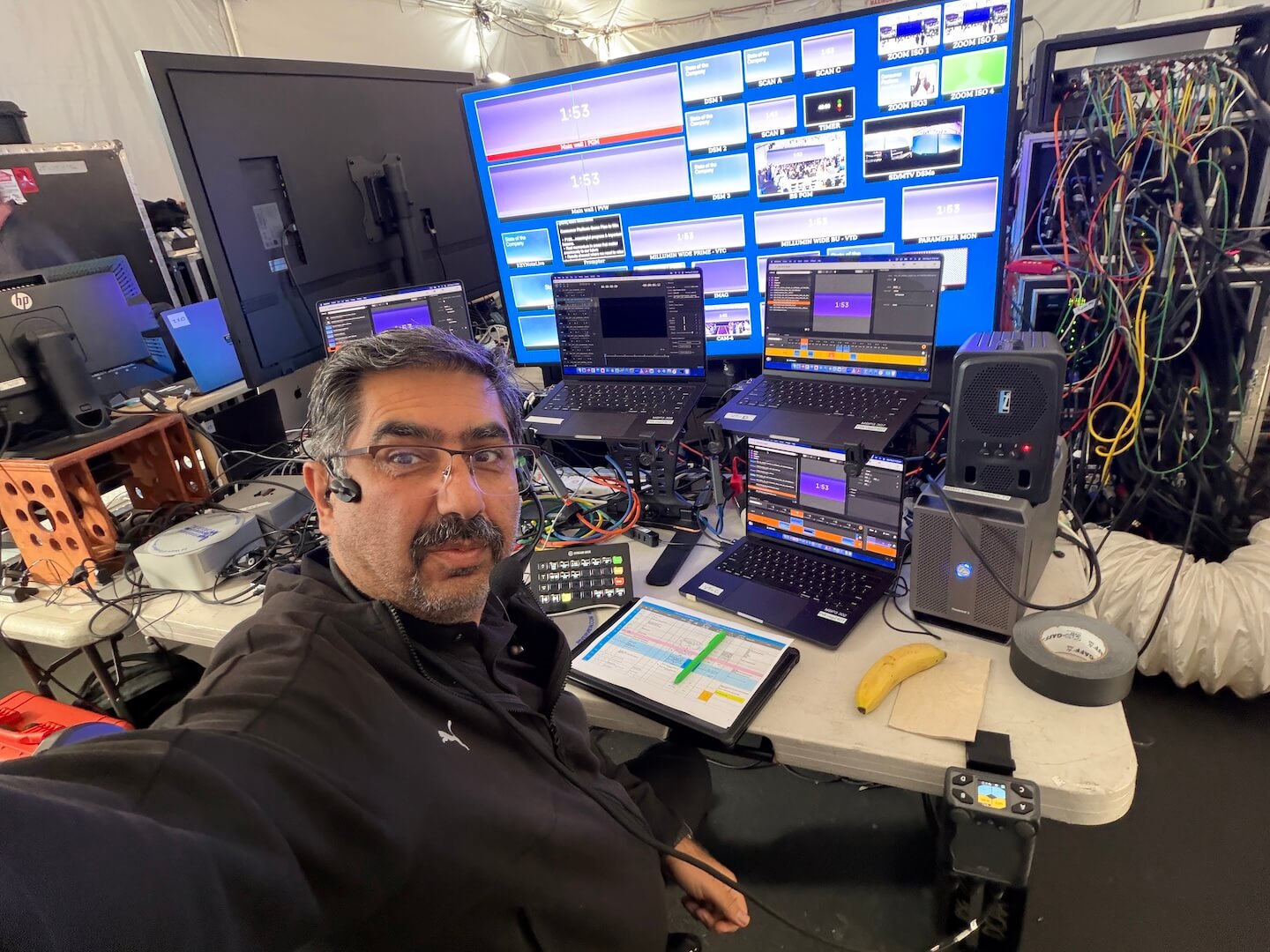
It had been several years since I had worked a full corporate show from the playback position.
On a recent production, I had the opportunity to jump back into that seat and work with a combination of Millumin and Mitti. What stood out to me was not simply that the software had changed. The role of corporate event video playback has changed too.
Years ago, many corporate shows treated playback as a relatively straightforward position: load the videos, confirm audio, organize the cue list, and reliably play the correct file when called.
That responsibility still exists, but modern corporate events may also require custom LED canvases, multiple destinations, synchronized playback, transparency, lower thirds, live inputs, mapping, timecode, and integration with screen-management systems.
The result is a much wider range of playback tools, from straightforward cue-based applications to full media-server platforms.
Corporate Event Video Playback Is No Longer One Job
Before choosing playback software, the more useful question is:
What does the playback position actually need to do on this show?
A corporate event may require any combination of:
- Standard 16:9 video playback
- Ultra-wide LED content
- Multiple simultaneous outputs
- Lower thirds
- Stingers and transitions
- Alpha-channel playback
- Looping walk-in content
- Timecode synchronization
- Live inputs
- NDI or SDI outputs
- Video mapping
- Backup playback systems
The best software for one of those jobs is not automatically the best software for all of them.
A Recent Corporate Playback Workflow
On the recent show I supported, the playback system was divided by purpose rather than asking one computer to handle everything.
The workflow included:
- Primary and backup Millumin playback for a custom wide canvas
- Primary and backup Millumin playback for standard 16:9 content
- Mitti used for lower-third playback
I liked the separation.
The wide-screen content had different requirements from normal 16:9 playback, and the lower-thirds workflow had a different job again.
Instead of forcing one application or operator interface to solve every problem, the system divided responsibilities in a way that made sense for the show.
That is an important principle in corporate event video playback: software should follow the production requirement, not the other way around.
Millumin for Corporate Event Playback
Millumin sits in an interesting position because it can operate as straightforward playback software while also handling much more advanced visual workflows.
Its current feature set includes both sequencer and timeline-based programming, multiple displays, multi-canvas timelines, video mapping, output warping, audio routing, timecode, and integrations with external control systems. :contentReference[oaicite:1]{index=1}
For corporate production, that becomes useful when playback is not confined to a normal 1920×1080 screen.
Wide LED Canvases
One of the most obvious applications is a custom LED canvas.
A ballroom may have a very wide screen with a pixel map that bears little resemblance to 16:9.
Content might be:
- 3840×1080
- 5760×1080
- 7680×1080
- Or another custom resolution based on the physical LED design
The exact number is not the important part.
What matters is that the playback system can understand the intended canvas and send predictable content into the screen-management workflow.
Millumin’s current multi-display, canvas, timeline and mapping tools make it appropriate for workflows where playback needs to extend beyond one conventional output. :contentReference[oaicite:2]{index=2}
Sequencer vs Timeline
Another useful distinction in Millumin is the ability to work with both a cue-oriented dashboard and timelines.
Not every corporate video needs a timeline.
If the show caller says:
“Standby Open Video.”
“GO Open Video.”
a straightforward cue can be enough.
But a more complicated sequence might involve multiple pieces of content, synchronized visual events, or a precisely timed opening.
That is where a timeline-based workflow becomes more valuable.
Millumin’s documentation specifically supports using timelines and its dashboard together rather than treating them as mutually exclusive workflows. :contentReference[oaicite:3]{index=3}
Mitti for Cue-Based Playback
Mitti approaches playback differently.
Its interface is fundamentally built around a playlist of cues.
Files can be loaded as individual cues, reordered, assigned Cue IDs, looped, given in/out points, faded, transitioned, and triggered directly from the playlist. :contentReference[oaicite:4]{index=4}
That makes the workflow very understandable from an operator perspective:
Here is the next cue. Make it ready. Play it when called.
That simplicity has real value during a live corporate show.
Mitti Is More Capable Than “Just Play a Video”
Calling Mitti simple does not mean it is limited to one HDMI output.
Current Mitti supports multiple displays as well as Blackmagic DeckLink and UltraStudio outputs, NDI and Syphon. It also supports features such as corner pinning, edge blending, timecode, browser sources, camera cues and external control. :contentReference[oaicite:5]{index=5}
For the show I recently supported, I liked using it for a focused graphics/playback role because the interface made the individual cues very easy to see and manage.
Sometimes that is exactly what you want from a playback position.
Millumin vs Mitti Is the Wrong Question
It is tempting to turn this into:
Millumin vs Mitti: which one is better?
I do not think that is the most useful comparison.
The better question is:
Which workflow matches the job?
If I need custom canvases, multiple visual spaces, mapping, layers, or more complex sequencing, Millumin gives me a larger visual toolbox.
If the requirement is a clean cue list where the operator needs to confidently load and trigger individual media elements, Mitti’s playlist-driven workflow can be very comfortable.
There is also no reason both cannot exist on the same production.
That is exactly what made the recent system interesting to me.
What About PlaybackPro?
PlaybackPro is the application I personally remember seeing and using regularly on corporate shows years ago.
At that time, what I cared about was straightforward:
- Does the video play correctly?
- Does it start immediately when called?
- Is the correct audio present?
- Can I confidently cue the next clip?
It was a very dependable way of thinking about playback.
The difference now is that the playback position is often being asked to do more.
Corporate stages have become wider, LED canvases have become more customized, screen-management systems have become more capable, and a single show may need several different video destinations.
The playback software market has evolved around those changing requirements.
ProVideoPlayer Is Another Multi-Screen Option
ProVideoPlayer is another application designed for multi-screen media playback.
Renewed Vision currently describes it as a multi-screen media server application capable of controlling content across multiple screens, with multiple layers, cue-to-cue workflows, timecode, live video inputs, different output protocols, custom layouts, masks, transitions and independent audio control. :contentReference[oaicite:6]{index=6}
That puts it beyond the category of simply playing the next video file.
Like Millumin, it can become part of the overall screen design rather than only serving as a source feeding another processor.
PIXERA Moves Further Into Media-Server Territory
At the other end of the spectrum are systems such as PIXERA.
AV Stumpfl describes PIXERA as a 64-bit media-server system for professional real-time media processing, compositing and management. Its architecture also extends into 2D/3D space, mapping, visualization and show-control applications. :contentReference[oaicite:7]{index=7}
This becomes relevant when the production moves beyond conventional corporate playback into areas such as:
- Very large canvases
- Multiple synchronized outputs
- Complex LED environments
- Projection mapping
- 3D workflows
- Advanced compositing
- Large-scale show control
- XR or virtual-production environments
That capability is valuable when the show requires it.
It can also be unnecessary complexity when the job is simply to play six keynote videos reliably.
The Playback System and the Screen Processor Have Different Jobs
This distinction becomes especially important on corporate shows using a screen-management processor such as Barco E2 or Encore3.
The playback system creates or plays the content.
The screen-management system determines how sources are arranged and delivered to the final displays.
For example, Millumin might output an ultra-wide piece of content while the E2 places that content into the appropriate destination and manages other layers, presentation sources, cameras, or backup looks around it.
Our guide to Barco E2 operation for corporate general sessions covers more of that screen-management workflow.
Keeping the responsibilities clear makes troubleshooting much easier.
If content is wrong inside the playback raster, start at playback.
If the correct raster reaches the processor but appears incorrectly on the destination, investigate the downstream workflow.
Main and Backup Playback Still Matter
Modern software does not remove the need for redundancy.
If a specific video absolutely needs to play during the CEO keynote, the production should consider what happens if the playback computer freezes, loses its output, or experiences another problem.
A proper backup workflow may include:
- Primary and backup playback computers
- Matching media files
- Matching output formats
- Separate processor inputs
- Clearly labeled primary and backup paths
- A tested method for switching between them
The backup system does not necessarily need to duplicate every creative feature of the primary system.
It does need to protect the critical content.
Sync the Content Before the Show
One of the easiest ways for redundancy to fail is for the primary and backup systems to contain different versions of a file.
A client replaces:
CEO_OPEN_v7.mov
on the primary machine, but the backup still has:
CEO_OPEN_v6.mov
Technically, both playback systems work.
Operationally, you no longer have a valid backup.
Version control is therefore part of playback redundancy.
Playback Should Follow the Run of Show
The playback operator should not need to search a desktop or Finder window after a cue is called.
Organize the playlist around the program.
Useful naming might include:
- 001 Walk-In Loop
- 010 Show Open
- 020 CEO Intro
- 030 Product Video
- 040 Panel Bumper
- 050 Closing Video
The numbers do not necessarily need to match the show caller’s cue numbers.
What matters is that the operator can immediately identify the next piece of media.
This follows the same principle we use in event run of show planning: preparation should reduce the number of decisions operators need to make after the cue is called.
Always Test the Actual Media
Seeing a thumbnail inside the playback application is not enough.
During technical rehearsal, verify important content through the complete signal path.
Check:
- File resolution
- Frame rate
- Codec
- Playback performance
- Audio presence
- Audio channel assignment
- Alpha channel where required
- In and out points
- Loop behavior
- End behavior
- Output resolution
- Processor input
- Final display
A file that plays correctly on a laptop display can still expose a problem when sent through an output card, converter, processor, LED system, or audio path.
The Operator Still Matters More Than the Software
The number of playback applications available today is impressive.
But the software does not understand the show.
The operator does.
A good playback operator knows:
- What is currently live
- What is next
- Which file is approved
- Whether the cue contains audio
- What should happen when it finishes
- Which output should receive it
- What the backup is
- When not to press GO
The interface can make those decisions easier.
It cannot replace them.
Choosing Corporate Event Video Playback Software
I would not choose a playback application simply because it has the longest feature list.
I would start with the show requirements.
For straightforward cue-based playback
A focused playlist-driven tool such as Mitti may be an excellent fit.
For wider canvases and more complex visual workflows
Millumin provides a strong combination of cue playback, timelines, multiple canvases and mapping tools.
For multi-screen playback and layered content
ProVideoPlayer is another platform worth evaluating.
For large-scale media-server environments
A platform such as PIXERA moves into a deeper level of real-time processing, compositing and spatial workflow.
None of those statements means one platform is universally better than another.
They solve overlapping but different production problems.
The Best Playback Software Is the One That Fits the Show
Coming back to the playback position after several years was a good reminder of how much the tools have changed.
But the fundamental job has not.
When the show caller says GO, the correct content has to appear on the correct screen with the correct audio at the correct moment.
Everything else is there to make that happen more reliably or to give the creative team more possibilities.
The best corporate event video playback application is not necessarily the one with the most features.
It is the one that gives the operator the control the show actually requires without adding unnecessary complexity.
Need Video Playback and Screen Management for a Corporate Event?
AV Land supports corporate conferences, executive presentations, product launches, general sessions, LED displays, video playback, Barco screen management, camera production, livestreaming, and technical direction throughout the San Francisco Bay Area and beyond.
Contact AV Land to discuss your next production.
Corporate Event Video Playback FAQ
What software is used for corporate event video playback?
Corporate events use a variety of platforms depending on the production requirements. Examples include Millumin, Mitti, ProVideoPlayer and full media-server platforms such as PIXERA. The best choice depends on the number of outputs, canvas size, cue complexity, mapping requirements, timecode, integration and redundancy needs.
What is the difference between Millumin and Mitti?
Both can perform professional video playback, but their workflows are different. Mitti is strongly centered around playlist-based individual cues, while Millumin combines sequencer, timeline, canvas, layering and mapping workflows. The better fit depends on what the playback position needs to control.
Can Millumin handle wide LED content?
Yes. Millumin supports multiple displays, custom canvases, multi-canvas timelines, mapping and output warping, making it useful for non-standard LED and projection configurations.
Can Mitti output through professional video hardware?
Yes. Current Mitti documentation supports multiple displays, Blackmagic DeckLink and UltraStudio devices, NDI and Syphon outputs.
Do corporate shows need backup playback computers?
It depends on the consequence of losing playback. For important executive videos, show opens, product launches and other non-repeatable moments, a properly prepared and tested backup playback path can significantly reduce production risk.
Is a media server the same as a playback computer?
Not always. A simple playback computer may primarily cue and play media. A media-server platform may additionally handle multiple outputs, layers, mapping, compositing, synchronization, 3D environments and other advanced visual processing.
Should playback software replace a Barco E2 or Encore3?
They generally perform different roles. Playback software generates or plays media, while a screen-management processor such as E2 or Encore3 typically combines multiple sources and manages how they appear across final display destinations. The systems often work together.