

Corporate AV Systems Checklist for Live Events
A corporate AV systems checklist is not a shopping list of microphones, cameras, screens, and switchers.
It is the technical plan that explains how every source reaches every destination, who controls each part of the system, which paths are critical, and how the production recovers when something fails.
For corporate conferences, executive meetings, product launches, webcasts, and hybrid events, that distinction matters. A system may contain high-quality equipment and still be difficult to operate if the signal flow, output formats, content workflow, power, network, and backup paths were not designed together.
This checklist focuses specifically on the AV system. For broader planning involving venue access, staffing, scheduling, presenter coordination, and production management, use our corporate event production checklist.
Corporate AV systems checklist at a glance
- Show requirements: Room count, audience, program format, presentations, panels, demonstrations, streaming, recording, and accessibility
- Display system: LED walls, projectors, screens, confidence monitors, overflow displays, pixel maps, resolutions, and sightlines
- Video sources: Presentation computers, playback, cameras, remote contributors, media servers, graphics, and backup sources
- Video processing: Switching, screen management, scaling, routing, multiviewers, synchronization, and destination control
- Audio: Microphones, PA, playback, panels, audience Q&A, remote guests, stream mix, records, and wireless coordination
- Lighting: Presenter visibility, camera exposure, stage looks, panel coverage, product demonstrations, and audience lighting
- Streaming: Platform, encoder, program feed, remote returns, captions, moderation, internet, monitoring, and backup records
- Recording: Program, clean presentation, ISO cameras, audio multitracks, file formats, storage, and deliverables
- Power: Circuits, distribution, UPS protection, grounding, power-up order, and emergency shutdown procedures
- Network: Control networks, internet access, IP addressing, switches, VLANs, firewall requirements, and backup connectivity
- Communications: Intercom, radios, channels, call signs, show calls, department communication, and backup comms
- Redundancy: Backup playback, spare microphones, alternate routes, records, processors, internet, cables, and adapters
- Testing: End-to-end line checks, rehearsal, confidence monitoring, stream checks, records, and failover procedures
Define the show requirements before choosing equipment
The equipment list should follow the program design—not the other way around.
A single-room executive meeting has different AV requirements from a general session with a wide LED canvas, several cameras, remote presenters, breakout rooms, and a public livestream.
Before building the system, confirm:
- Event date and venue
- Load-in, setup, rehearsal, show, and strike times
- Room count and room changes
- Audience size
- Stage and seating layout
- Presenter and panel count
- Audience Q&A format
- Live product demonstrations
- Remote speakers
- Presentation and playback requirements
- Livestream or webinar platform
- Recording deliverables
- Captioning, interpretation, and assistive-listening requirements
- Available budget range
Identify every moment when the audience must see, hear, or respond to something. These moments determine the required sources, screens, microphones, camera coverage, cues, and backup priorities.
Build the signal-flow diagram
Signal flow is the backbone of the AV system.
Every source needs a defined route to every required destination, with a clear owner and a tested recovery path.
The system diagram should include:
- Presentation computers
- Playback systems
- Media servers
- Cameras
- Graphics systems
- Remote-contributor feeds
- Audio consoles
- Video switchers
- Screen-management processors
- Routers and distribution
- LED processors and projectors
- Confidence monitors
- Streaming encoders
- Recording systems
- Control and communications networks
Label primary and backup paths separately. Include connector types, resolutions, frame rates, and which operator controls each device.
If the crew cannot explain how a presentation reaches the main screen, confidence monitor, stream, and record, the system is not ready.
Keep ownership clear
Not every feed should automatically pass through one processor or switcher.
A well-designed system may divide responsibilities like this:
- The production switcher handles camera cuts and broadcast program.
- The screen-management processor handles stage canvases, scaling, layers, and destination layouts.
- The router distributes clean feeds, records, backups, and utility outputs.
- The audio console creates separate room, stream, record, and remote-participant mixes.
- The streaming encoder delivers the final program to the online platform.
Assigning each device the work it performs best usually creates a cleaner and more recoverable system.
Display and screen-system checklist
Begin with every destination the audience, presenters, crew, and online viewers need.
- Main LED wall or projection screen
- Side screens
- Downstage confidence monitors
- Backstage confidence displays
- DSM monitors
- Speaker timers
- Teleprompter displays
- Lobby and overflow displays
- Livestream program
- Recording feeds
- Engineering multiviewers
For each destination, document:
- Physical dimensions
- Pixel dimensions or native resolution
- Aspect ratio
- Frame rate
- Input connector
- Primary feed
- Backup feed
- Required content composition
- Operator responsible
LED-wall requirements
For an LED wall, confirm the final pixel map before graphics are designed.
- Total canvas width and height in pixels
- LED-processor input raster
- Number of processor feeds
- Screen sections or independent destinations
- Content safe areas
- Presentation and IMAG window positions
- Frame rate and synchronization
- Primary and backup LED inputs
- Brightness appropriate for cameras and the room
Do not specify the system from the physical wall dimensions alone. A visually modest fine-pitch wall can still require a demanding pixel canvas and several independent feeds.
Projection requirements
- Screen dimensions and aspect ratio
- Projector brightness
- Lens and throw distance
- Projector position
- Ambient-light control
- Rigging or mounting method
- Signal transport
- Primary and backup inputs
- Blend, warp, or edge-blending requirements
Projector brightness should be evaluated against screen size, ambient light, content, camera use, and the expected visual standard—not selected from room capacity alone.
Video-source checklist
Presentation computers
Corporate presentations are frequent sources of last-minute problems.
Plan for:
- Primary presentation computer
- Matching backup computer
- Controlled output resolution and frame rate
- Presentation fonts
- Embedded media
- Presenter notes
- Audio playback
- Clicker operation
- HDCP behavior
- Sleep, notification, and update settings
- Final-content synchronization
Whenever practical, run presentations from production-controlled computers rather than switching between untested presenter devices.
Presenter-owned laptops
When a presenter must use their own laptop, test:
- Connector and adapter
- Output resolution
- Display arrangement
- HDCP
- Audio
- Network access
- Notifications
- Power settings
- Presenter view
- Recovery path
An available HDMI cable does not make an unknown laptop show-ready.
Playback systems
- Primary and backup playback
- Matching content versions
- Codec compatibility
- Frame rate
- Audio-channel layout
- Aspect ratio
- Playback cue names
- Output mapping
- Emergency still or holding look
Cameras
- Number of cameras
- Camera positions
- Lens requirements
- Tripod and platform requirements
- Camera shading
- White balance and color matching
- Genlock
- Return video
- Tally
- Intercom
- IMAG delay
- Program and ISO records
- Audience Q&A coverage
Video switching and screen-management checklist
Complex corporate events may need both a production switcher and a screen-management processor.
A production switcher is commonly used for camera cuts, graphics, records, and livestream program. A screen-management processor may manage nonstandard LED canvases, layered layouts, scaling, multiple destinations, and seamless transitions.
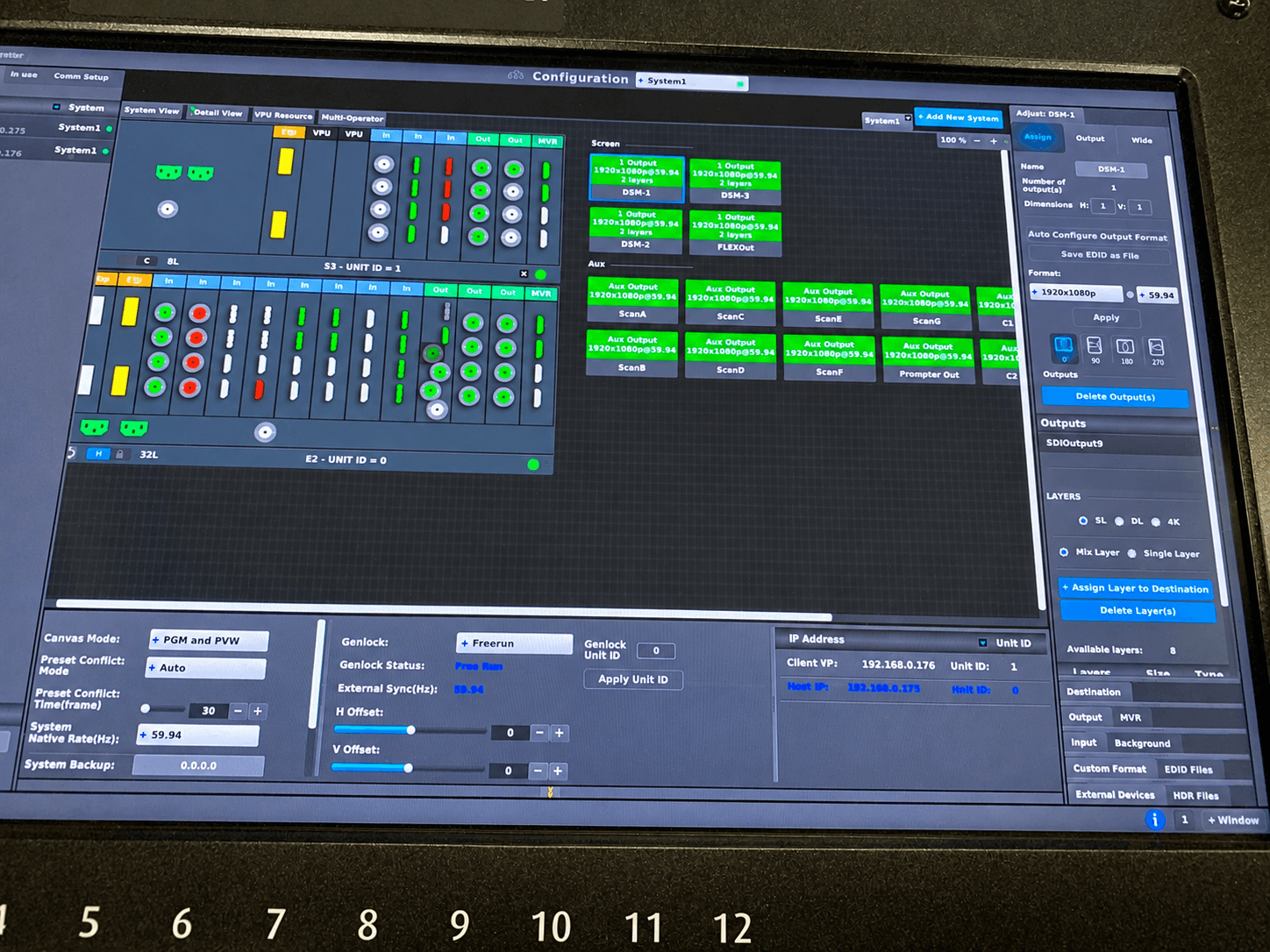
Barco describes Event Master as a platform for screen mapping, source selection, windowing, seamless switching, effects, and control across multiple displays. Its E2 Gen 2 can be configured with up to 40 inputs and 18 outputs, including 16 4K inputs and eight 4K outputs. Exact capabilities depend on the installed cards and configuration. :contentReference[oaicite:1]{index=1}
Review the official Barco Event Master platform and E2 Gen 2 specifications when designing the system.
Avoid referring to Barco Encore3 as “E3” in formal technical documents. Its official product name is Encore3.
Processing checklist
- Required input formats
- Required output formats
- Canvas dimensions
- Screen destinations
- Layer requirements
- Preset and cue requirements
- Multiviewer layout
- Genlock and synchronization
- HDCP requirements
- Primary and backup show files
- Backup processor or bypass path
- Operator and controller requirements
Audio-system checklist
The audio system must support the audience in the room, remote viewers, recordings, presenters, and production crew.
Microphones
- Lavalier microphones
- Handheld microphones
- Podium microphones
- Panel microphones
- Audience Q&A microphones
- Backup wireless channels
- Spare transmitters and capsules
- Fresh batteries
- Microphone labeling
- RF coordination
Room reinforcement
- Main PA
- Front fills
- Delays
- Subwoofers where required
- Stage monitors or foldback
- Coverage and intelligibility
- System tuning
- Venue noise restrictions
Broadcast and recording audio
- Dedicated livestream mix where appropriate
- Program-record feed
- Multitrack recording
- Playback audio
- Audience reaction microphones
- Remote-caller audio
- Mix-minus
- Interpretation and captioning feeds
- Press and overflow feeds
The in-room and online mixes are related, but they are not always identical. Remote viewers do not naturally hear the room, audience reaction, or unamplified speakers, so the stream mix must create a complete listening experience.
Lighting-system checklist
- Presenter front light
- Panel coverage
- Podium coverage
- Walk-and-talk positions
- Product-demo areas
- Audience Q&A lighting
- Camera exposure
- Color temperature
- Scenic lighting
- Walk-in and break looks
- Video-playback look
- Closing look
- Emergency work light
Lighting should be checked through the cameras as well as from the audience position. A stage can appear attractive in the room while producing poor skin tones or uneven exposure on IMAG and the livestream.
Livestream and hybrid-event checklist
First identify the online event format:
- Private meeting
- Webinar
- Town hall
- Public livestream
- Hybrid conference
- Executive webcast
Zoom distinguishes meetings, webinars, and hybrid-event workflows, while Microsoft provides meetings, webinars, and town halls with different production and audience structures. The platform should be selected around audience scale, presenter control, interaction, security, and moderation—not simply client familiarity. :contentReference[oaicite:2]{index=2}
Review the official Zoom hybrid-event guide and Microsoft Teams event-format overview during planning.
Streaming-system checklist
- Platform and account access
- Event link
- Organizer, host, producer, and presenter roles
- Primary encoder
- Backup encoder or recording strategy
- Program video
- Program audio
- Graphics and lower thirds
- Remote-contributor return video
- Remote-contributor return audio
- Mix-minus
- Captions
- Q&A and moderation
- Audience monitoring
- Primary internet path
- Backup internet path
- Local program recording
Recording checklist
Define the required deliverables before selecting recorders and storage.
- Switched program record
- Clean presentation record
- Clean camera record
- Individual camera ISO records
- Presentation computer record
- Audio mix
- Audio multitracks
- Remote-participant record
- Resolution and frame rate
- Codec and file format
- Continuous or segmented files
- Primary and backup recording
- Storage capacity
- File-copy and verification procedure
- Post-production deadline
A livestream platform recording should not automatically be treated as the only master record. Critical events usually benefit from locally recorded program and audio files.
Power-distribution checklist
- Venue power availability
- Required circuits
- Power distribution plan
- Load calculations
- Grounding
- Circuit labeling
- Separation of critical systems
- UPS protection
- Backup power where required
- Power-up sequence
- Shutdown sequence
- Access to electrical panels
- Venue electrician requirements
UPS units should protect show control and allow controlled recovery; they should not be assumed to run an entire production indefinitely.
Network and internet checklist
Production-control network
- Managed switches
- IP-address plan
- DHCP requirements
- VLANs
- Device discovery
- Network isolation
- Control-computer access
- Backup switch or recovery plan
- Documentation of connected devices
Streaming internet
- Hardline location
- Dedicated or shared connection
- Upload bandwidth
- Connection stability
- Packet loss
- Firewall requirements
- Authentication
- Venue IT contact
- Backup ISP or bonded connection
- Testing from the actual encoder location
A speed test alone does not prove that an internet connection is production-ready. Stability, network sharing, firewall restrictions, routing, and venue support also matter.
Communications checklist
- Intercom base station
- Wired and wireless beltpacks
- Headsets
- Show-call channel
- Audio channel
- Video channel
- Stage-management channel
- Camera channel
- Streaming channel where required
- Call signs
- Radio assignments
- Backup communications
- Battery and charging plan
Every operator should know who calls their cues, where department conversation belongs, and how an urgent problem is reported without blocking the show caller.
Redundancy checklist
Redundancy should focus on failures that could stop the event or create an unacceptable interruption.
- Backup presentation computer
- Backup playback system
- Mirrored final content
- Spare wireless microphone
- Spare batteries
- Backup video route
- Secondary LED-processor input
- Backup show file
- Emergency still or holding source
- Backup recording
- Backup internet path
- Spare signal converters
- Spare fiber, SDI, HDMI, network, and power cables
- Common presenter adapters
- Documented failover responsibility
A backup counts only when it is configured, tested, current, and accessible to the operator who must use it.
Content-control checklist
- Final-content deadline
- Authorized content approver
- File-naming convention
- Revision numbers
- Native presentation file
- PDF backup
- Video codecs
- Audio channels
- Fonts
- Embedded media
- Graphics spelling
- Lower-third titles
- Logo files
- Content safe areas
- Primary and backup machine synchronization
After rehearsal begins, all new content should enter through one controlled path. Files arriving independently by email, messaging apps, flash drives, and different staff members create version-control problems.
Technical rehearsal checklist
A content review confirms that files open. A technical rehearsal confirms that the production works.
Rehearse:
- Walk-in to opening video
- Opening video to presenter entrance
- Presentation to IMAG
- Panel transitions
- Remote guests
- Product demonstrations
- Audience Q&A
- Playback and lighting cues
- Confidence-monitor changes
- Graphics and lower thirds
- Stream start and end
- Record starts and stops
- Backup and recovery procedures
AVIXA’s official live-event resources emphasize planning, defined production roles, and coordinated technical execution. :contentReference[oaicite:3]{index=3}
Final show-day AV systems check
Before doors open, verify:
- Current run of show distributed
- Current show files loaded and backed up
- Presentation systems synchronized
- Playback files tested
- All microphones checked
- Program and stream audio confirmed
- Cameras shaded and ready
- Main screens verified
- Confidence monitors checked from the stage
- Streaming platform logged in
- Encoder health confirmed
- Program and backup records active
- Internet and backup connectivity ready
- Intercom and radios checked
- Stage lighting in the correct look
- Remote guests connected or scheduled
- Emergency holding sources ready
- Every department has reported ready
Once the system has passed rehearsal and the final check, avoid unnecessary changes. Show day is not the time to introduce a new routing concept, update operating software, change platforms, or accept an untested source directly into the program path.
Build the AV system around the actual event
No single corporate AV checklist fits every production.
The correct system depends on the room, audience, screens, program format, source count, camera plan, online audience, recording requirements, schedule, crew, and tolerance for interruption.
The goal is not to specify the largest package. It is to create a system that the production team can understand, test, operate, and recover under pressure.
Need help designing a corporate AV system?
AV Land provides corporate AV production, screen management, Barco E2 systems, cameras, audio, lighting, presentation support, recording, and livestreaming throughout the San Francisco Bay Area.
We design the system around the venue, show format, signal flow, destinations, staffing, and backup requirements rather than treating equipment as unrelated rental items.
Explore our corporate event services and livestream production services.
Send us your event date, venue, audience size, run of show, screen requirements, streaming needs, schedule, and budget range to begin planning the system.
Frequently asked questions
What is included in corporate AV production?
Corporate AV production may include audio reinforcement, microphones, projection or LED walls, presentation systems, cameras, lighting, video switching, screen management, streaming, recording, communications, technical staffing, and show support.
How is an AV systems checklist different from an event-production checklist?
An AV systems checklist focuses on equipment, signal flow, formats, routing, power, networking, communications, recording, and technical testing. An event-production checklist also covers venue coordination, schedules, staffing, presenters, logistics, and overall show management.
Does every corporate event need a backup AV system?
Not every device requires a duplicate. Backup planning should prioritize systems whose failure would stop the event or cause an unacceptable interruption, such as presentations, microphones, critical display paths, records, and livestream connectivity.
Should the room and livestream use the same audio mix?
Not always. The room mix supports the audience inside the venue, while the stream mix must create a complete listening experience for remote viewers. Complex events often benefit from a separate broadcast mix or dedicated stream processing.
When should presentations be submitted?
Presentations should be submitted early enough to test fonts, embedded video, audio, aspect ratio, and playback. The production should establish a final-content deadline and one controlled process for late revisions.
How should venue internet be tested?
Test the hardline connection from the actual encoder position. Check upload capacity, stability, packet loss, firewall restrictions, authentication, network sharing, and the availability of venue IT support during the event.
What should be tested during technical rehearsal?
Test the transitions and handoffs most likely to fail: presentation changes, videos, camera shots, audio cues, remote guests, confidence monitors, graphics, lighting, stream operation, records, and backup procedures.