



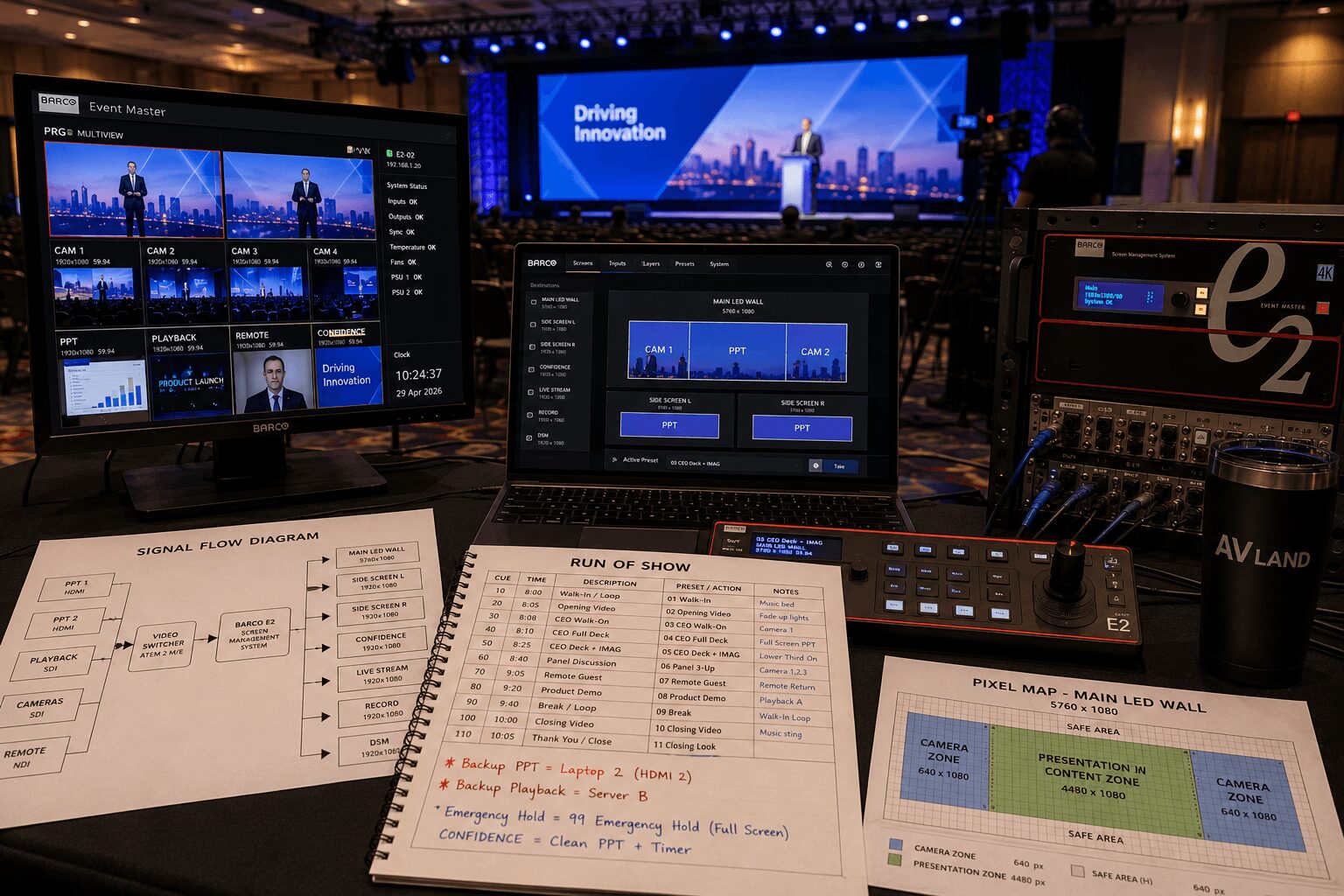
Barco E2 Operator Workflow for Corporate Shows
A Barco E2 operator workflow should begin long before the operator recalls the first preset.
On a corporate keynote, product launch, conference, or executive event, E2 may sit at the center of the screen-management system. It can receive presentation computers, playback systems, cameras, remote contributors, media servers, and still images, then build different compositions for LED walls, projection surfaces, confidence displays, and other destinations.
That flexibility is valuable, but it also creates risk. When several critical sources and screens depend on one programmed system, the operator needs a clear signal plan, disciplined naming, tested presets, predictable cueing, and recovery paths that can be activated without rebuilding the show during rehearsal.
The strongest E2 workflow is not based on how quickly someone can manipulate layers. It is based on how little they need to improvise after the audience enters.
Barco E2 operator workflow at a glance
- Collect the show requirements: Confirm the screens, source list, resolutions, cue structure, confidence needs, records, and backup requirements.
- Build the signal plan: Map every source, destination, router path, processor connection, and backup route.
- Define the canvas: Confirm LED pixel maps, projection rasters, destination geometry, frame rates, and content safe areas.
- Configure the system: Establish chassis, cards, linking, outputs, destinations, multiviewers, and control networking.
- Name everything clearly: Label inputs, destinations, presets, layers, router routes, and cue-sheet references consistently.
- Program show states: Build repeatable looks around audience-facing cues rather than manipulating individual inputs live.
- Create recovery states: Prepare safe looks for lost cameras, failed playback, missing presentations, and remote-guest failures.
- Back up the show file: Save verified copies locally and on a separate device.
- Line-check every path: Test sources through E2 and all the way to the real destination.
- Rehearse the cue sequence: Validate timing, transitions, confidence, presenter views, and department handoffs.
- Lock the show: Control late changes and avoid unnecessary programming after rehearsal.
- Operate and monitor: Watch program, preview, destinations, source health, backups, and upcoming cues.
- Save and archive: Record final changes, save the completed file, and document issues for the next show.
Start the Barco E2 operator workflow before load-in
A reliable show begins with a signal plan—not with an E2 chassis sitting in a rack.
Before equipment is loaded, the operator should know:
- Every source entering the system
- The format of each source
- Every screen or visual destination
- The composition required on each destination
- Which feeds require independent content
- Which sources and outputs are critical
- How the system will recover from a failure
- Which devices are controlled by the E2 operator
- Which devices are controlled by other departments
A clear source-to-destination drawing is often more useful during troubleshooting than an overly complicated rack diagram. The operator should be able to trace a failed image quickly from source to destination without guessing which device owns each part of the path.
Build the source list
A corporate general session may include:
- Primary and backup presentation computers
- Video playback systems
- Media servers
- Camera feeds
- Remote-presenter feeds
- Holding slides
- Walk-in loops
- Sponsor content
- Countdowns and timers
- Emergency stills or safety backgrounds
For every source, document:
- Source name
- Connector type
- Resolution
- Frame rate
- HDCP status
- Audio requirements
- Primary route
- Backup route
- Operator responsible for the source
Build the destination list
Destinations may include:
- Main LED canvas
- Side screens
- Projection surfaces
- Downstage confidence monitors
- Backstage confidence displays
- DSM displays
- Lobby and overflow screens
- Engineering multiviewers
- Livestream or recording feeds
These destinations do not always need the same composition, resolution, or frame rate.
The main room may use an ultrawide scenic canvas with presentation and IMAG windows, while a livestream production switcher creates a conventional 16:9 program. Confidence monitors may show a clean presentation feed, presenter notes, a timer, or a return from a separate system.
Do not force every output to become a copy of the main screen. Design each destination around its actual purpose.
Decide what the E2 should—and should not—handle
E2 is a screen-management processor, but it does not need to become the only routing and production device in the system.
Depending on the show, other devices may be better suited for:
- Camera switching
- Livestream program cuts
- Recording distribution
- Press feeds
- Large-scale signal routing
- Audio embedding and de-embedding
- Simple confidence-feed distribution
- Emergency bypass paths
A good system keeps each device doing the work it handles best.
The production switcher may own camera cuts and stream graphics. The router may distribute clean feeds and backups. E2 may manage the stage canvas, screen destinations, scaling, layering, and transitions.
Barco describes the Event Master platform as supporting screen mapping, source selection, windowing, seamless switching, video effects, and integrated control of multiple screens. Review the official Barco Event Master overview when designing the system.
Define the canvas and output strategy
The E2 workflow should begin with the physical display design.
Confirm:
- Final LED pixel dimensions
- LED-processor input rasters
- Projection resolutions
- Canvas width and height
- Screen overlap or blend requirements
- Portrait and landscape destinations
- Refresh and frame-rate requirements
- Content safe areas
- Whether screens operate as one canvas or independent destinations
A center LED wall with two side displays may be programmed as one coordinated visual environment or as several independent destinations. That decision changes how backgrounds, presets, masks, and source windows should be built.
Resolve mixed aspect ratios early
Corporate events commonly combine:
- 1920×1080 PowerPoint presentations
- Ultrawide LED backgrounds
- Portrait scenic displays
- 16:9 camera feeds
- 16:9 livestream outputs
- Nonstandard sponsor content
Do not wait until show site to decide how a standard presentation will fit an ultrawide canvas.
Establish the visual rules before content production begins:
- Will presentations appear full height or full width?
- Will unused canvas areas carry branding?
- Where will IMAG windows appear?
- Are there dedicated presentation and camera zones?
- What happens when content arrives in the wrong aspect ratio?
- Which elements must remain inside safe areas?
Give the content team an exact pixel map and delivery specification rather than a scenic rendering alone.
Configure and verify the Event Master system
Before programming show looks, confirm the actual hardware and software configuration.
- Correct E2 chassis identified
- Input and output cards verified
- Link cards and EX chassis confirmed where applicable
- Control-network addresses documented
- Compatible Event Master Toolset version installed
- Firmware versions confirmed
- Controllers connected and tested
- Multiviewer outputs assigned
- Genlock and synchronization verified
- Backup configuration documented
Barco recommends using compatible software and firmware releases that have been tested together. The current software, firmware, manuals, and documentation are available through the official E2 Gen 2 support page.
The official Event Master Devices User Guide should remain the technical reference for destinations, linking, configuration, presets, and system operation.
Use a consistent naming system
Clear naming reduces operator workload and improves communication across departments.
Avoid relying only on labels such as:
- Input 7
- Layer 3
- Preset 42
- Output 6
Those numbers may be useful technically, but they do not describe the show action.
Use clear labels such as:
- Primary PowerPoint
- Backup PowerPoint
- Playback A
- Playback B
- CEO Full Deck
- CEO Deck + IMAG
- Panel 3-Up
- Remote Guest + Slides
- Break Look
- Emergency Hold
Keep naming consistent across:
- Event Master Toolset
- EC-series controllers
- Router control
- Playback systems
- Switcher labels
- Multiviewers
- Run of show
- Technical cue sheet
The show caller should not need to translate “Preset 42” into “CEO deck with camera right.”
Build layers around show cues—not the patch panel
A common programming mistake is building the show file around the physical inputs and then manipulating those inputs live as the show develops.
That may work for a simple meeting, but it creates unnecessary risk on a cue-heavy keynote.
A stronger workflow builds repeatable visual states around what the audience should see:
- Walk-in
- Countdown
- Opening video
- Executive entrance
- Full-screen presentation
- Presentation with IMAG
- Full-screen IMAG
- Panel discussion
- Remote guest
- Product demonstration
- Audience Q&A
- Break
- Closing
- Emergency hold
The operator then recalls and verifies a designed state instead of constructing the look after the cue has already started.
Reserve resources intentionally
Do not allocate every available layer during initial programming.
Leave room for:
- Late presenter content
- An additional camera window
- A remote contributor
- Lower thirds
- Emergency messaging
- Client-requested layout changes
Headroom is part of the design. A show file that technically fits but has no available resources is difficult to adapt during rehearsal.
Program source replacements where practical
Where the workflow supports it, make primary and backup sources easy to exchange without rebuilding the look.
For example:
- Primary PowerPoint and Backup PowerPoint
- Playback A and Playback B
- Primary remote feed and holding slide
- Camera 1 and alternate camera
The recovery action should be predictable and should preserve the destination composition whenever possible.
Keep transitions deliberate
Not every screen change benefits from movement.
Clean cuts often work best for:
- Presentation changes
- IMAG insertions
- Camera-source replacements
- Time-sensitive spoken cues
- Emergency recovery
Dissolves or animated moves may be appropriate for:
- Scenic changes
- Walk-in to opening looks
- Panel-layout changes
- Branded transitions
- Closing sequences
Transitions should be programmed and rehearsed. An unnecessarily long dissolve can reveal an incoming source before it is ready or make a precisely timed cue feel late.
Make sure the cue sheet identifies whether each transition is a cut, dissolve, move, or timed sequence.
Build recovery looks before rehearsal
Redundancy is not simply duplicate hardware. It is a recovery workflow that can be activated quickly without making the problem more visible.
Prepare safe states for the most likely failures.
Presentation failure
The recovery option may be:
- Backup presentation computer
- Full-screen camera
- Branded holding slide
- Walk-in background
- Emergency still
Playback failure
Prepare:
- Mirrored playback machine
- Known-safe still
- Alternate video path
- Host or presenter camera
- Abort cue for lighting and audio
Camera failure
A lost camera should not leave a black or frozen window inside an active composition.
Prepare an alternate look using:
- Another camera
- Full-screen presentation
- Branded background
- Reduced panel layout
Remote-guest failure
Decide whether the recovery state is:
- A holding slide
- Moderator camera
- Pre-recorded content
- Full-screen presentation
- A temporary return to the previous segment
Document who makes the decision and who executes each recovery.
For a broader discussion of system backups, see how we build redundant AV systems for corporate keynotes.
Back up the show file properly
The operator should create backups at several production milestones:
- Initial system configuration complete
- Destinations and outputs complete
- Primary programming complete
- Rehearsal changes complete
- Final show-ready version
Use clear filenames that include the event, date, and revision:
Client_Event_E2_2026-07-30_ShowReady_v07
Store a verified copy:
- On the primary programming computer
- On a separate local drive
- On another authorized show computer or secure storage location
A backup is useful only if the crew knows which version is current.
Line-check the complete signal path
A source appearing in Event Master Toolset is not fully tested.
Each critical source must be checked through the complete path:
- Source output
- Router or distribution
- E2 input
- Destination composition
- E2 output
- LED processor, projector, monitor, switcher, recorder, or encoder
- Final visible destination
For each source, verify:
- Correct label
- Resolution and frame rate
- Aspect ratio
- Scaling
- Color and level consistency
- Audio where applicable
- HDCP behavior
- Backup source
Test the real confidence path
A confidence monitor is not tested from front of house.
Stand in the presenter’s position and confirm:
- The correct content appears
- The display is readable
- The monitor is not blocked
- The source changes at the correct cue
- The presenter does not see private content intended for another destination
- The backup feed is available
Rehearse the actual cue sequence
Technical line checks prove that signals exist. Rehearsal proves that the production can run.
During technical rehearsal, the E2 operator should work through the actual cue sequence with:
- Show caller
- Technical director
- Presentation operator
- Playback operator
- Camera director
- Lighting director
- A1
- Streaming engineer
- Stage manager
Prioritize high-risk transitions
Test:
- Walk-in to opening video
- Opening video to executive entrance
- Full-screen deck to deck with IMAG
- Panel layouts
- Remote guest handoffs
- Product demonstrations
- Audience Q&A
- Break and return
- Closing video
- Emergency hold states
Pay close attention to the frames between cues. That is where accidental black, incorrect sources, unfinished transitions, and late confidence changes become visible.
Use specific cue language
The show caller does not need to understand the internal E2 layer structure, but each cue should produce one predictable action.
Useful language:
“Standby CEO deck with IMAG.”
“Go CEO deck with IMAG.”
Unclear language:
“Bring up the camera thing over the slides.”
The preset name, cue sheet, and verbal call should describe the same visual result.
Maintain an offline operator reference
Keep a printed or locally stored reference at the operating position.
Include:
- Preset names
- Cue numbers
- Primary source assignments
- Backup source assignments
- Special transitions
- Destination notes
- Confidence-feed assignments
- Emergency looks
- Recovery procedures
- Important router routes
This does not replace the show caller. It protects accuracy when the schedule changes or an operator must recover quickly.
Lock the system after rehearsal
Once rehearsal is complete, avoid unnecessary changes to the stable show file.
Changes that should require approval may include:
- Input reassignment
- Output-format changes
- Destination changes
- Layer-resource changes
- Preset renaming
- Transition timing
- Router-path changes
- Control-network changes
Late content changes are common. Late architecture changes should not be.
When a change is necessary:
- Identify the affected cues and destinations.
- Save the current working file.
- Make the change in a controlled state.
- Test primary and backup paths.
- Update the operator reference.
- Notify the technical director and show caller.
Run the show from a clear operating position
Once doors open, the operator’s job is to keep audience attention on the stage—not on the screen system.
The operator should continuously monitor:
- Program destinations
- Preview states
- Critical source health
- Multiviewers
- Confidence feeds
- LED or projection outputs
- Upcoming cues
- Backup availability
- Communication from the show caller
Avoid combining too many operating roles
On a simple event, one operator may manage screen compositions and presentation switching.
On a more complex show, separate operators may be needed for:
- E2 screen management
- Camera switching
- Presentation playback
- Video playback
- Graphics
- Livestream production
The decision should be based on cue density, screen complexity, number of sources, and failure risk—not only labor budget.
Keep troubleshooting away from program
If a secondary destination develops a problem, assign another engineer to diagnose it whenever staffing allows.
The active E2 operator should protect:
- Main-screen program
- Upcoming cues
- Confidence feeds
- Primary communication
- Known recovery states
Do not make experimental routing changes inside the only live program path.
End-of-show workflow
After the final cue, do not immediately begin dismantling the operating system.
Complete the following:
- Confirm all records have stopped correctly
- Save the final E2 show file
- Create a separate archived copy
- Document late changes
- Record any failed or unreliable devices
- Note content-format problems
- Capture useful router and system configurations
- Confirm the client no longer needs the screens active
- Coordinate shutdown order with all departments
Post-show notes can reduce programming time and prevent repeated problems when the event returns.
Common Barco E2 workflow mistakes
Building the show entirely during load-in
Destination planning, naming, pixel mapping, and primary programming should begin before show site whenever the required information is available.
Programming around inputs instead of cues
The audience sees visual states—not input numbers. Build repeatable show looks.
Using unclear preset names
A preset name should immediately describe the intended result.
Using every available layer
Leave capacity for late requests and recovery.
Testing only at the E2 input
Verify the complete path to the actual display or destination.
Having backups that are not synchronized
A backup presentation or playback source must contain the current content and match the expected output format.
Changing a stable show file unnecessarily
Once rehearsal is complete, every architectural change introduces new risk.
Giving one operator too many simultaneous responsibilities
A complex screen system, camera switch, playback system, and livestream may require separate operators.
Build the workflow for the show you actually have
The right Barco E2 operator workflow depends on:
- Room size
- Screen geometry
- Final pixel canvas
- Number of destinations
- Source formats
- Cue density
- Presenter requirements
- Livestream integration
- Staffing
- Risk tolerance
A single-screen executive meeting may need a lean workflow. A multi-surface product launch with IMAG, live demonstrations, remote presenters, and simultaneous streaming requires more programming, staffing, testing, and redundancy.
The principle remains the same: map the system, build repeatable show states, rehearse the handoffs, and make recovery simple enough to use under pressure.
AVIXA offers additional live-event production education and training for technicians and production teams through its official training and certification resources.
Need an E2 system and experienced operator?
AV Land provides Barco E2 systems, Event Master operation, technical direction, presentation systems, cameras, livestreaming, recording, and corporate event production throughout the San Francisco Bay Area.
We design the E2 workflow around the actual screen canvas, source list, cue structure, monitoring, staffing, and recovery requirements rather than treating the processor as an isolated rental item.
Learn more about our technical direction for conferences and corporate event-production services.
Send us your event date, venue, screen dimensions, pixel map, source list, run of show, rehearsal schedule, and budget range to begin planning the system.
Frequently asked questions
What does a Barco E2 operator do?
A Barco E2 operator configures and operates the screen-management system. Responsibilities may include input setup, screen destinations, layers, presets, transitions, scaling, multiviewers, confidence feeds, show-file backups, rehearsal, cue execution, and recovery procedures.
Should E2 handle the camera switch and livestream program?
Not automatically. E2 can create screen compositions using camera and presentation sources, but a dedicated production switcher may be better suited for camera direction, broadcast graphics, livestream program cuts, and recording workflows.
When should the E2 show file be programmed?
Initial programming should begin before load-in whenever the screen design, source list, and pixel map are available. Final verification and show-specific adjustments happen onsite after the real equipment and destinations are connected.
How should E2 presets be named?
Preset names should describe the audience-facing result, such as “CEO Deck + IMAG,” “Panel 3-Up,” or “Remote Guest + Slides.” Avoid relying only on preset numbers.
How often should the E2 show file be backed up?
Create backups after major programming milestones, after rehearsal changes, and after the final show-ready version is confirmed. Keep at least one copy on a separate device or secure storage location.
What should happen if an E2 source fails during the show?
The operator should recall a preplanned recovery state or replace the failed source with a verified backup. The exact response depends on whether the failed source is a presentation, video playback, camera, remote contributor, or background.
Does an E2 operator also need a show caller?
Most cue-heavy corporate productions benefit from a separate show caller or technical director. The E2 operator should concentrate on the screen system while the caller coordinates timing across video, audio, lighting, stage management, playback, and presenters.