



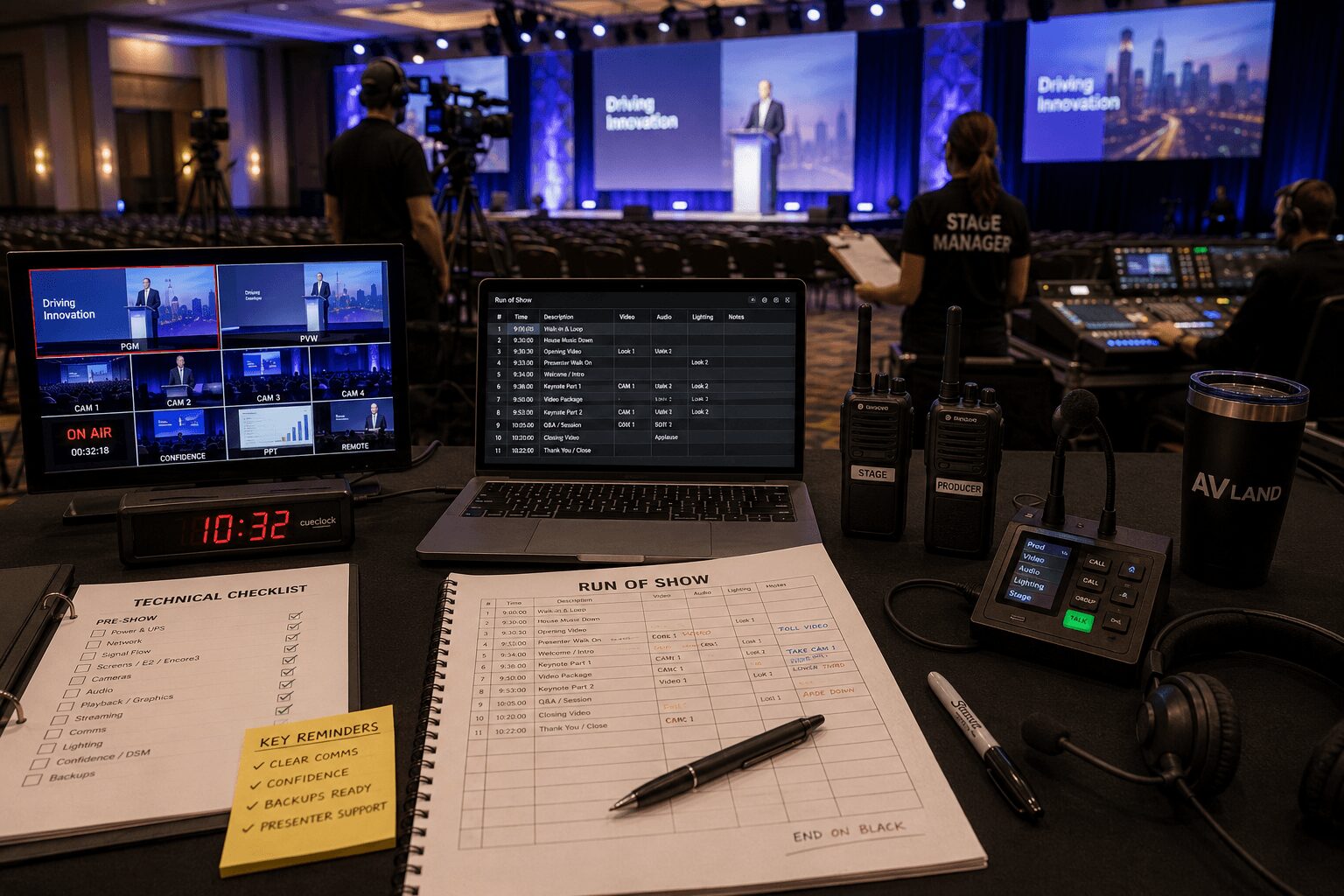
Onsite Technical Direction Checklist
An onsite technical direction checklist should catch the small problems that can become visible failures once a corporate event begins.
Most shows do not start slipping because of one dramatic equipment failure. Problems usually begin with a missed cue, an incorrect confidence feed, a playback machine routed to the wrong destination, an untested remote presenter, or a speaker who was never properly checked on stage.
For conferences, executive meetings, product launches, webcasts, and hybrid events, onsite technical direction is not limited to calling cues. It means maintaining one shared operating picture across video, audio, lighting, playback, streaming, stage management, and show control.
The goal is simple: identify uncertainty before doors open and keep departments coordinated after the show begins.
Onsite technical direction checklist at a glance
Before the audience enters, the technical director and department leads should confirm the following:
- Show documents: The latest run of show, cue list, contact sheet, stage plot, signal flow, and room layout are distributed.
- Power: Critical systems are on the correct circuits, UPS protection is confirmed, and nobody will power-cycle show equipment without approval.
- Network: Control networks, streaming connections, platform access, and backup connectivity are tested.
- Signal flow: Every source has been tested through its complete path to every required destination.
- Screen management: Destinations, presets, scaling, pixel maps, confidence outputs, and backup processing are verified.
- Audio: Microphone assignments, playback levels, program feeds, mix-minus, remote returns, and emergency microphone procedures are confirmed.
- Lighting: Walk-in, keynote, panel, video, Q&A, and emergency looks are ready.
- Cameras: Camera positions, shading, return video, tally, records, shot assignments, and communication are checked.
- Playback and graphics: Final files, version control, output mapping, audio, key/fill paths, and backup machines are confirmed.
- Streaming: Platform login, event settings, encoder health, stream destination, program audio, records, and return monitoring are tested.
- Communications: Every critical operator has the correct headset, channel assignment, call signs, and backup communication method.
- Presenters: Microphones, clickers, confidence monitors, walk paths, teleprompter, remote connections, and stage timing are rehearsed.
- Cueing: Standby, go, hold, abort, reset, and emergency language are understood by the entire crew.
- Redundancy: Backup systems are connected, synchronized, tested, and assigned to a specific operator.
- Authority: The team knows who can hold the show, approve a late change, trigger a backup, or stop an unsafe action.
What an onsite technical direction checklist should cover
A useful checklist cannot be a generic event template. It has to reflect the actual show system.
For a corporate production, that may include:
- Presentation computers
- Video playback
- Graphics and lower thirds
- Screen-management processors
- Cameras and image magnification
- Audio reinforcement
- Stage and scenic lighting
- Confidence and DSM displays
- Teleprompter
- Speaker timers
- Remote contributors
- Streaming encoders
- Recording systems
- Intercom and production communications
- Primary and backup signal paths
If the checklist is too general, operators will ignore it. If it is too narrow, it will miss the department handoffs and failure points that create the most trouble.
The checklist should follow the order of operational risk:
- Show documents and ownership
- Power and infrastructure
- Networking and system control
- End-to-end signal verification
- Department readiness
- Presenter and content checks
- Rehearsal and cue validation
- Backup procedures
- Doors-open monitoring
- Live execution
Clarify the technical director’s role
The exact responsibilities of a technical director vary between production companies and event formats.
On one show, the technical director may operate the video switcher. On another, the TD may oversee the complete technical system while a separate video director, screen-management operator, or show caller handles individual functions.
Before load-in, clarify who owns:
- Overall technical system readiness
- Video switching
- Camera direction
- Screen-management programming
- Show calling
- Department cueing
- Presenter holds
- Playback approval
- Streaming activation
- Backup-system decisions
- Emergency show stops
Job titles alone are not enough. The crew needs to understand the actual decision path.
Pre-show onsite technical direction checklist
Confirm that everyone has the correct show documents
Before system checks begin, confirm that the operating team has the most recent versions of:
- Run of show
- Technical cue sheet
- Speaker and presenter list
- Room and seating layout
- Stage plot
- Camera plot
- Lighting plot
- Audio input list
- Frequency plan
- Video signal-flow diagram
- Screen pixel map
- Network map
- Contact sheet
- Emergency and venue contacts
Every document should include a revision date or version number. A crew working from several different cue sheets is already operating without a shared picture.
Confirm critical power
Before discussing creative polish, confirm the infrastructure supporting the show.
The technical director should know:
- Which circuits feed show control
- Which circuits feed audio
- Which circuits feed video and screen processing
- Which circuits feed LED processors or projection
- Which systems are protected by UPS units
- How long critical UPS units can support the connected load
- Which devices must not be power-cycled during the show
- Who has access to electrical panels
- How emergency power loss will be communicated
Critical equipment should be labeled clearly. Any power change affecting show systems should require coordination with the technical lead.
Verify the production network
Modern corporate productions may use several networks simultaneously:
- Screen-management control
- Audio control
- Lighting control
- Intercom
- Camera control
- Streaming and internet access
- Media-server control
- File transfer
Confirm IP addressing, switches, VLAN requirements, device discovery, remote-control access, and which systems must remain isolated.
A production network should not be changed casually after rehearsal. Replacing a switch, enabling an unknown DHCP server, or connecting an unmanaged device can disrupt several departments at once.
Test signal flow end to end
Every source must be tested through its full path—not only at the first device that receives it.
Examples:
- A presentation laptop appearing at the switcher is not fully tested until it reaches the main screen, confidence monitor, stream, and record path.
- A camera appearing in multiview is not fully tested until it reaches IMAG, program, recording, and any required livestream destination.
- A remote caller is not fully tested until return audio, return video, confidence, program inclusion, and backup contact methods are confirmed.
The test should include all converters, routers, processors, scalers, distribution amplifiers, encoders, decoders, and destination displays.
Verify source formats
For each source, confirm:
- Resolution
- Frame rate
- Aspect ratio
- Color space
- HDCP status
- Audio presence
- Genlock or synchronization requirements
- Primary and backup connector paths
Do not rely on an operator saying that a source “looks good.” Confirm that it is reaching the correct destination at the intended format.
Screen-management checklist
When the production uses a Barco E2, Encore3, or another screen-management processor, verify the complete screen environment before rehearsal.
The checklist should include:
- Correct show file loaded
- Backup copy stored separately
- Input connectors labeled and verified
- Source formats confirmed
- Screen destinations mapped correctly
- Output assignments confirmed
- Pixel-map dimensions checked
- LED-processor or projector mappings verified
- Preset transitions reviewed
- Layers and resources confirmed
- Background and still-store content checked
- Multiviewers arranged and labeled
- Confidence and DSM destinations tested
- Backup processor or bypass path tested
- Controller and network communication confirmed
For Event Master systems, the official Barco Event Master Devices User Guide is the correct reference for current destination, linking, configuration, and operating procedures.
If your show uses an E2 or Encore3, avoid using “E3” in technical documents. Barco’s official product name is Encore3.
Test content that exposes processing problems
Do not test an LED canvas only with a logo or full-screen photograph.
Use content that can reveal:
- Incorrect pixel mapping
- Scaling artifacts
- Soft text
- Output misalignment
- Frame synchronization issues
- Color differences
- Incorrect safe areas
- Unexpected cropping
Useful test content includes fine grids, one-pixel lines, labeled screen sections, moving patterns, small text, and known aspect-ratio markers.
Audio checks from the technical-direction position
The A1 owns the audio system, but the technical director must understand the audio elements that affect the complete show.
Confirm:
- Program audio source
- Playback audio handoff
- Microphone assignments
- Panel and podium coverage
- Audience Q&A method
- Walk-in and walk-out music
- Remote-contributor mix-minus
- Return audio for remote presenters
- Stream-specific audio feed
- Recording feeds
- Interpretation or assistive-listening feeds
- Spare microphone procedure
- Who communicates a microphone change
Many apparent audio failures are actually communication failures. For example, audio may replace a wireless microphone correctly, but graphics, cameras, stage management, and the stream team may still be working from the previous assignment.
Camera and IMAG checklist
For events using cameras or image magnification, confirm:
- Camera positions and sightlines
- Tripod safety and audience clearance
- Lens and framing assignments
- White balance and color matching
- Exposure and stage-lighting compatibility
- Genlock or synchronization
- Return video
- Tally
- Intercom
- Camera naming and multiview labels
- Record status
- ISO-record requirements
- Panel and podium coverage
- Audience Q&A coverage
- Backup camera plan
Camera operators should understand the show format, not only their shot list. A panel, product demonstration, award presentation, and keynote each require different timing and framing decisions.
Playback, presentations, and graphics checklist
Presentation and playback systems are frequent sources of show-day changes. Establish one controlled workflow.
Confirm:
- Final file deadline
- File naming convention
- Version-control method
- Primary and backup computers
- Matching content on both systems
- Output resolution and frame rate
- Presentation fonts
- Embedded video and audio
- Presenter notes and display mode
- Clicker assignments
- Video codec compatibility
- Playback audio levels
- Graphics spelling and titles
- Key-and-fill routing where required
- Last-minute file approval authority
Do not accept updated files through several unrelated paths once rehearsal begins. Last-minute content should go through one designated person so the crew does not lose control of versions.
Communications checklist
Production communication deserves a dedicated test.
Every essential operator should know:
- Their channel assignment
- Their call sign or role name
- Who calls their cues
- Which channel carries show calls
- Which channel is used for department conversation
- How urgent information is escalated
- How to report a failure without blocking show calls
- What backup communication method is available
Typical positions may include:
- Producer
- Show caller
- Technical director
- Video director
- Screen-management operator
- V1
- A1 and A2
- Lighting director
- Playback operator
- Graphics operator
- Streaming engineer
- Stage manager
- Camera operators
- Teleprompter operator
Test every beltpack, headset, wireless pack, and channel before rehearsal. Confirm that the stage manager can hear show control from all working positions.
Onsite technical direction checklist for rehearsal
Technical rehearsal is where the checklist stops being theoretical.
The rehearsal should test timing, handoffs, and cue ownership—not merely review presentation content.
Prioritize high-risk show moments
Test the segments most likely to create problems:
- Opening countdown and video
- Executive walk-ons
- Live product demonstrations
- Remote contributors
- Panel transitions
- Award presentations
- Audience Q&A
- Video playback with lighting changes
- Multiple simultaneous screen cues
- Segments with music, graphics, cameras, and stage cues together
Validate every cue category
During rehearsal, confirm:
- Presentation advances
- Video rolls
- Graphics and lower thirds
- Camera presets and shots
- Lighting looks
- Microphone opens and closes
- Walk-in and walk-off music
- Confidence-monitor content
- Teleprompter timing
- Speaker timers
- Remote presenter returns
- Streaming transitions
- Record starts and stops
If the video starts correctly but the lights remain in walk-in, the speaker walks before the microphone is live, or IMAG cuts to an unprepared camera, the cue has not been successfully rehearsed.
Check the presenter’s view from the stage
Do not validate confidence monitors only from front of house.
Stand in the presenter’s actual position and verify:
- Confidence-monitor sightlines
- Slide readability
- Timer visibility
- Teleprompter position
- Stage marks
- Walk paths
- Camera awareness
- Microphone placement
- Clicker operation
- Lighting comfort
A monitor can display the correct signal and still be unusable if the presenter cannot see it from the lectern or panel chair.
Define what becomes locked after rehearsal
After rehearsal, identify the elements that should not change without technical approval.
These often include:
- Playback file names
- Presentation output assignments
- Graphics templates
- Cue numbering
- Microphone assignments
- Screen presets
- Comms terminology
- Remote-contributor routing
Some timing and presenter language may remain flexible. Technical routing and file-control procedures should not.
Show calling and cue-language checklist
Cue language should be standardized before doors open.
The exact terminology may vary between production teams, but everyone should understand the selected system.
- Warning: A cue is approaching, but no immediate action is required.
- Standby: The operator should prepare to execute the specified cue.
- Go: Execute the cue immediately.
- Hold: Do not execute the planned cue.
- Abort: Cancel the action or sequence.
- Reset: Return to the agreed recovery or starting state.
A standby should identify the department and action clearly:
“Standby video playback 12, lighting keynote look, audio walk-off music, and camera 2.”
The go call should be equally clear:
“Go video 12. Go lighting. Go audio.”
A technically experienced crew can still miss cues when terminology changes from one caller to another or when unrelated conversation covers the show channel.
Redundancy and failover checklist
Saying that a system has a backup is not enough.
For each critical failure point, document:
- The primary system
- The backup system
- Whether failover is automatic or manual
- Who has authority to trigger it
- Which operator executes it
- How long the transition should take
- What the audience will see or hear
- How the team communicates the failure
- How the failed system is isolated
Playback redundancy
A backup playback computer is useful only when:
- It contains the current files
- The output format matches
- Audio is routed correctly
- The operator can access it immediately
- The switch path has been rehearsed
Streaming redundancy
A second encoder does not create complete streaming redundancy by itself.
Also consider:
- Power
- Network path
- Internet service
- Platform authentication
- Audio routing
- Video routing
- Graphics
- Monitoring
- Recording
Screen-system redundancy
Depending on the show, this may include:
- Backup processor
- Backup output card
- Spare converter
- Secondary LED-processor input
- Router bypass
- Emergency full-screen source
- Known safe preset
A backup system should be integrated and tested. Equipment sitting unopened in a road case is inventory, not operational redundancy.
Department handoffs that commonly cause problems
Many live-show issues occur between departments rather than inside one department.
Playback and audio
Confirm who checks file audio, who sets playback level, who opens the channel, and whether the stream receives the same feed.
Stage management and audio
Confirm who reports microphone changes, when the microphone is placed, and how late presenter substitutions are communicated.
Graphics and stage management
Confirm final names, titles, pronunciation, walk-up order, and who approves corrections.
Video and streaming
Confirm whether the stream receives the room program, a clean feed, a separate switch, or a custom composition.
Remote contributors and the room
Confirm who talks to the guest, who controls their return audio and video, who cues them, and who manages a failed connection.
Lighting and cameras
Confirm that each lighting look supports the intended camera exposure, color temperature, and presenter position.
A strong onsite technical direction checklist makes these handoffs explicit before the show begins.
Livestream and hybrid-event checks
Corporate productions with livestreaming need separate verification for the online audience.
The room can look correct while the stream receives the wrong audio, an incomplete screen feed, or no remote return. The stream can also look correct while the ballroom receives the wrong destination.
Confirm:
- Platform and event link
- Account and license access
- Host, producer, presenter, and attendee roles
- Platform login status
- Event start permissions
- Waiting room, green room, or backstage workflow
- Program video
- Program audio
- Remote return video
- Remote return audio
- Mix-minus
- Graphics and lower thirds
- Captioning
- Recording permissions
- Local backup records
- Encoder health
- Internet stability
- Audience monitoring
- Q&A and moderation
Zoom supports hybrid events with different virtual and onsite participation modes, while Microsoft Teams Town Hall uses defined organizer, co-organizer, presenter, and attendee workflows. Review the official Zoom hybrid-event documentation and Microsoft Teams Town Hall documentation during platform planning.
For more complex programs, see AV Land’s guide to producing an executive webcast.
Doors-open checklist
Before doors open, complete one final system pass.
- Latest show file saved and backed up
- Latest run of show distributed
- All operator positions staffed
- Comms checked
- Walk-in content running
- Walk-in music running
- Stage lighting in the correct look
- Presentation computers ready
- Playback and graphics machines ready
- Microphones assigned and staged
- Cameras ready and records confirmed
- Streaming platform logged in
- Encoders and backup records active
- Confidence monitors checked
- Presenter timers reset
- Remote guests connected or scheduled
- Stage clear and safe
- Emergency contacts available
- Backup paths ready
The technical director should receive a clear “ready” from each department rather than assuming silence means readiness.
Checklist during the live show
Once the show begins, technical direction shifts from setup verification to active monitoring.
Continue watching:
- Program and preview
- Main-screen destinations
- Confidence feeds
- Camera readiness
- Playback status
- Graphics status
- Audio meters and microphone changes
- Stream health
- Record indicators
- Remote guest status
- Presenter position
- Upcoming cue density
- Schedule variance
- Department communications
The technical director should always know what is live, what is next, what is standing by, and which recovery option is available.
How the checklist changes by event type
Corporate keynote
Priorities usually include screen destinations, presentation control, IMAG, executive walk-ons, confidence displays, and precise cue timing.
Panel discussion
Priorities shift toward microphone coverage, camera angles, speaker identification, lower thirds, moderation, and audience Q&A.
Product launch
Live demonstrations, reveal timing, video playback, lighting transitions, product cameras, and contingency content become more important.
Executive webcast
Streaming confidence, remote returns, records, audio quality, graphics, platform roles, and online audience monitoring take priority.
Hybrid conference
The checklist must coordinate the ballroom experience, remote presenters, platform moderation, stream-specific content, records, and communication between onsite and online teams.
AVIXA provides additional hybrid-event production guidance and professional live-event training resources.
What clients should expect from onsite technical direction
Onsite technical direction should provide more than a person calling cues over a headset.
For a high-stakes corporate event, clients should expect someone who can:
- Understand the complete technical system
- Identify weak handoffs
- Structure rehearsals around risk
- Maintain clear communication
- Recognize a developing problem
- Make calm decisions under time pressure
- Protect the audience experience
- Coordinate backup procedures
- Keep departments working as one production team
The value is the ability to see the complete system at once.
Technical direction is not an extra layer placed on top of production. It is the control point that keeps video, audio, lighting, playback, streaming, staging, and presenter support moving as one show.
Need onsite technical direction for a corporate event?
AV Land provides corporate event production services, technical direction, screen management, cameras, presentation systems, recording, and livestream production throughout the San Francisco Bay Area.
Keeping technical direction, video systems, streaming, and show support under one production team helps reduce unclear handoffs and gives the client one point of responsibility.
Send us your event date, venue, run of show, screen design, streaming requirements, crew schedule, and budget range to begin planning the production.
Frequently asked questions
What does an onsite technical director do?
An onsite technical director oversees or operates the technical systems required to execute the event. Responsibilities may include signal flow, video switching, screen management, department coordination, rehearsals, cue execution, system monitoring, and backup decisions. The exact role should be defined before the event because job responsibilities vary between productions.
Is a technical director the same as a show caller?
Not necessarily. A show caller coordinates cues across all departments, while a technical director commonly focuses on technical execution and system operation. On smaller events, one person may perform both roles. On larger productions, they are usually separate positions.
When should the technical-direction checklist be completed?
The checklist should begin during pre-production, be updated during load-in, validated during rehearsal, and reviewed again before doors open. It is not a document that should be created for the first time on show day.
What should be tested during technical rehearsal?
Technical rehearsal should test cue-heavy transitions, presentation switching, video playback, graphics, camera shots, lighting changes, microphone handoffs, confidence monitors, teleprompter, remote speakers, streaming, records, and backup procedures.
Who has authority to hold the show?
That decision must be defined during pre-production. Depending on the event, hold authority may belong to the producer, show caller, stage manager, technical director, or client representative. The crew should know who has final authority before doors open.
Does having spare equipment count as redundancy?
Only when the spare is configured, connected or immediately accessible, loaded with current files, and assigned to an operator who knows how to activate it. An untested spare sitting in a road case is not a complete backup plan.
Should every corporate event have a technical director?
Simple meetings may not require a dedicated technical director. Events involving multiple screens, cameras, livestreaming, complex presentations, remote contributors, executive visibility, or several technical departments usually benefit from one clearly defined technical lead.