



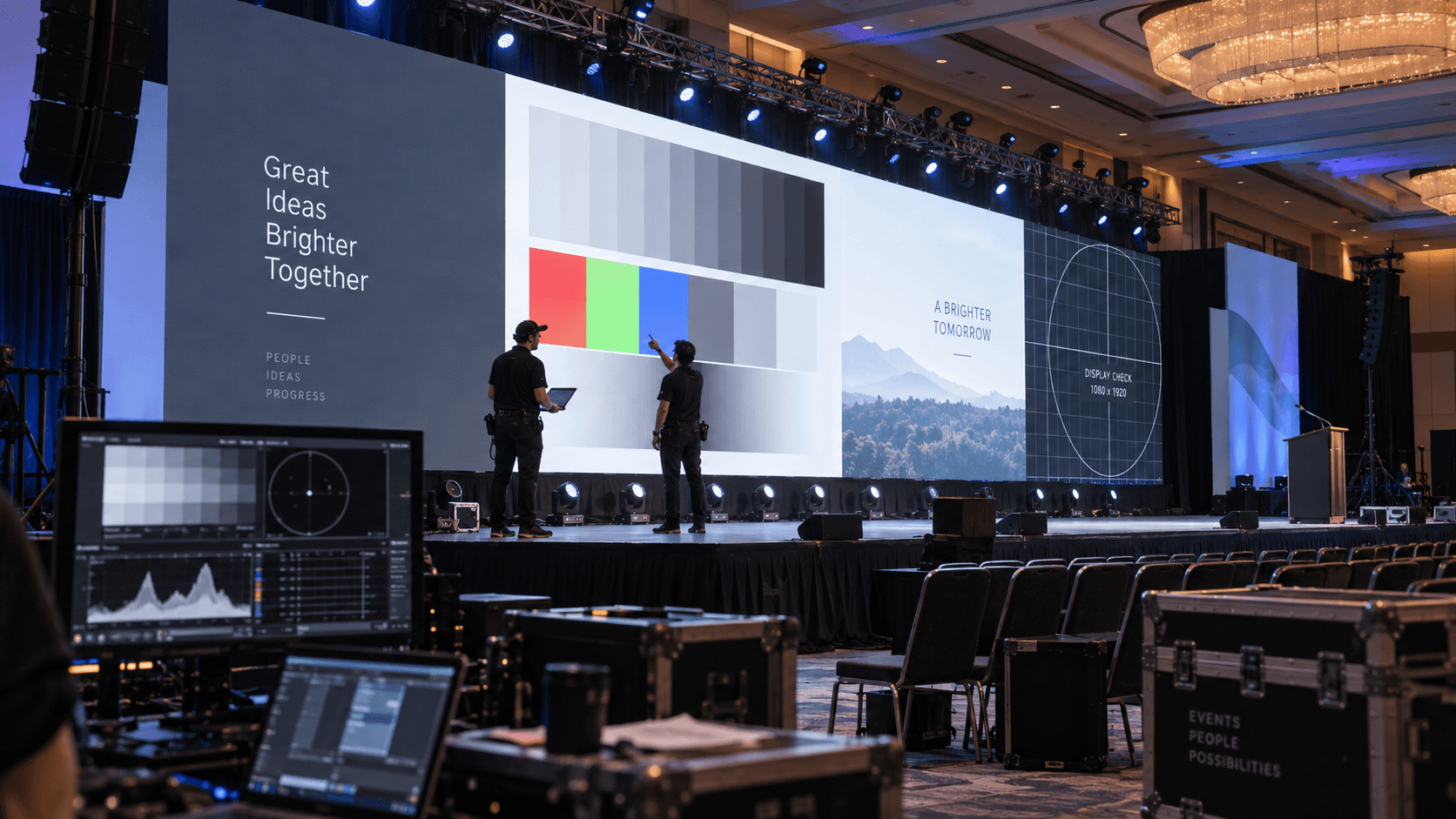
Corporate LED Wall Calibration for Live Events
A corporate LED wall can be mapped correctly, receive the right resolution, and still look wrong.
One cabinet may appear warmer than the rest. A gray background may reveal visible panel differences. A dark gradient may show poor tonal response. Or the wall may look excellent to the eye while producing moiré, scan artifacts, or clipped highlights on camera.
Corporate LED wall calibration is part of preventing those problems before executives, attendees, photographers, and livestream viewers see them.
For live events, however, it is important to distinguish between true LED calibration and the show-site tuning and validation that happens during setup and rehearsal.
Both matter, but they solve different problems.
What Corporate LED Wall Calibration Actually Means
Professional LED systems may use cabinet-level or pixel-level calibration data to improve brightness and color uniformity across the display.
Calibration systems measure differences between LEDs or cabinets and generate correction data intended to reduce visible variation.
NovaStar, for example, provides dedicated screen and cabinet calibration systems designed to improve brightness and color uniformity across LED displays.
That is different from simply selecting a color temperature or reducing brightness at the processor.
At a live corporate event, crews are often working with LED inventory that already contains factory or rental-house correction data. The onsite work then becomes:
- Verifying that the correct calibration data is active
- Checking cabinet uniformity
- Matching replacement cabinets or modules
- Setting operating brightness
- Adjusting white point and gamma
- Confirming processor and receiving-card settings
- Testing content
- Checking the wall on camera
In other words, full calibration may happen before the wall arrives onsite, while final tuning and validation happen in the ballroom.
Why LED Uniformity Matters on Corporate Stages
Corporate content often exposes display inconsistency very quickly.
Large areas of:
- White
- Light gray
- Dark gray
- Brand colors
- Subtle gradients
can make cabinet-to-cabinet variation much more visible than fast-moving video.
A wall might look acceptable during a colorful walk-in loop and then reveal obvious differences as soon as a keynote presentation puts a flat gray background across the entire canvas.
This is one reason LED should be evaluated with actual show content rather than only test patterns.
Calibration Cannot Fix Every LED Problem
It is useful to know what calibration can and cannot solve.
Calibration may help improve:
- Brightness uniformity
- Color uniformity
- White balance consistency
- Grayscale response
But it cannot repair every physical or system problem.
Examples include:
- Damaged LED modules
- Dead pixels
- Mechanical cabinet misalignment
- Incorrect processor mapping
- Bad signal paths
- Poor-quality source content
- Incorrect output resolution
A crew can waste significant time trying to “calibrate” something that is actually a mechanical, content, or signal-flow problem.
Brightness Should Match the Room, Not the Maximum Specification
Maximum LED brightness is not automatically the correct operating level for a corporate event.
Indoor LED walls can be extremely bright.
If the wall is driven too hard in a ballroom, it may:
- Compete with stage lighting
- Make presenters uncomfortable
- Reduce perceived black detail
- Create difficult camera exposure
- Become visually tiring for the audience
The correct level depends on:
- Ambient light
- Stage lighting
- Pixel pitch
- Viewing distance
- Camera use
- Screen size
- Content type
The final brightness should be evaluated with the stage lighting active.
Setting the wall in an empty ballroom under work lights and assuming it is finished can create a very different result once the actual show lighting is turned on.
White Point Is More Than Selecting 6500K
Choosing a 6500K preset does not automatically mean the complete wall is accurately or uniformly displaying that white point.
The more important questions are:
- Does the whole wall visually match?
- Does the white point remain consistent at show brightness?
- Does the wall match adjacent LED or projection surfaces?
- How does it reproduce on camera?
Depending on the LED system, receiving-card features and processor controls may provide additional color-management tools.
NovaStar’s current systems, for example, include calibration and color-management functions within supported receiving-card and control workflows.
NovaStar LED control and calibration resources
Gamma and Grayscale Are Critical for Corporate Content
Gamma affects how the display reproduces tonal values between black and white.
If the response is poor, corporate content may show:
- Crushed dark detail
- Harsh midtones
- Banding
- Uneven gradients
- Poor shadow detail
This becomes particularly noticeable in branded motion graphics and cinematic keynote videos.
Do not evaluate grayscale performance only with colorful content.
Use:
- Gray ramps
- Black-to-white gradients
- Dark video
- Client presentation backgrounds
because those often reveal problems much faster.
Corporate LED Wall Calibration and Camera Shading Must Work Together
A wall that looks excellent to the human eye may behave very differently on camera.
Possible camera-visible problems include:
- Refresh artifacts
- Scanning lines
- Moiré
- Color shift
- Clipped highlights
- Unnatural skin-tone contrast
The final result depends on both sides of the system.
LED factors include:
- Refresh rate
- Brightness
- Processor configuration
- Scan behavior
- Pixel pitch
Camera factors include:
- Frame rate
- Shutter speed or shutter angle
- Exposure
- Sensor characteristics
- Lens choice
- Camera distance
This is why LED validation should happen with the real production cameras whenever the wall will appear in IMAG, recording, or livestreaming.
A useful test includes a presenter standing in the actual show position with normal stage lighting, while the camera team checks skin tone and the LED team checks the wall behind them.
Plan LED and Camera Positions Together
Camera placement can affect how LED behaves visually.
Extreme side angles may exaggerate:
- Pixel structure
- Color variation
- Moiré
- Perspective distortion
Camera distance also interacts with pixel pitch.
Our guide to conference camera placement covers how camera positions should be planned around stage geometry, LED backgrounds, IMAG, and livestreaming.
A Practical LED Wall Setup and Calibration Workflow
1. Verify the Physical Build
Before adjusting color, confirm that the wall is mechanically correct.
Check:
- Cabinet alignment
- Module seating
- Visible seams
- Damaged modules
- Dead pixels
- Power distribution
- Data connections
A physical alignment problem can easily be mistaken for a brightness or color issue from the audience.
2. Confirm Cabinet Mapping
Verify that every cabinet is correctly mapped in the LED processing system.
Confirm:
- Cabinet order
- Data direction
- Processor outputs
- Receiving-card configuration
- Canvas dimensions
Do this before spending time on visual tuning.
3. Verify Calibration or Correction Data
If the LED inventory uses stored correction coefficients, verify that they are correctly loaded and associated with the correct cabinets or modules.
This becomes particularly important when cabinets or modules are replaced during setup.
NovaStar’s cabinet calibration documentation specifically addresses calibration of new, old, and rental cabinets to improve uniformity and reduce differences between cabinets.
4. Set the Operating Brightness
Bring up the actual stage lighting.
Then adjust LED brightness based on how the wall will really operate during the show.
Do not optimize it only for the empty ballroom.
5. Set White Balance and Gamma
Evaluate:
- White field
- Gray field
- Gradients
- Black level
- Client brand colors
Make sure the settings remain stable at the intended operating brightness.
6. Test Real Playback Content
This step is often more useful than staring at test patterns for another 20 minutes.
Run:
- Show open
- Walk-in loop
- Executive video
- Product video
- Branded motion graphics
If the show uses custom wide content or multiple playback systems, verify the actual playback workflow rather than just a still frame.
Our guide to corporate event video playback covers workflows using applications such as Millumin, Mitti, ProVideoPlayer, and media-server systems for wide canvases, standard 16:9 playback, and other live-event content.
7. Test Presentation Content
Corporate presentation decks can expose LED issues very quickly.
Check slides containing:
- White backgrounds
- Light gray backgrounds
- Small text
- Charts
- Fine lines
- Brand colors
A wall that looks excellent with motion graphics may look less consistent with a large static white PowerPoint slide.
8. Check the Wall on Camera
Bring up the real camera system.
Evaluate:
- Presenter skin tone
- LED brightness
- Moiré
- Refresh artifacts
- Color reproduction
- Camera exposure
Make adjustments with both the LED and camera teams involved.
9. Test the Complete Signal Chain
Even a perfectly tuned LED wall cannot correct a bad signal reaching it.
Verify the path from source to screen.
That may include:
- Presentation computer
- Playback computer
- Video switcher
- Screen-management processor
- LED processor
- Receiving cards
- LED cabinets
Check:
- Resolution
- Frame rate
- Color range
- Color space
- Scaling
- EDID behavior
Barco E2 and Encore3 Are Upstream of LED Calibration
On complex corporate productions, a Barco E2 or Encore3 may manage presentation sources, cameras, playback, layouts, layers, and destinations before the signal reaches the LED processor.
Barco’s current Event Master platform includes Encore3 as its newer screen-management platform.
The E2 or Encore3 does not replace LED calibration.
It has a different job.
The screen-management processor controls how sources are composed and routed.
The LED processor and receiving-card system control how the physical LED display reproduces the final image.
Both sides need to agree on format, scaling, and signal behavior.
Test the Backup Path Too
A common mistake is verifying the primary video path but not the backup.
If the primary presentation computer and backup computer use different:
- Output range
- Resolution
- Frame rate
- Color settings
the wall may visibly change when the backup is selected.
The same applies to backup playback systems.
If a redundant system exists, put it on the wall during rehearsal and verify it.
Common LED Wall Problems Found Too Late
Several issues repeatedly appear when crews run out of setup time:
- Factory settings accepted without show-site validation
- Replacement cabinets that do not visually match
- Wall brightness set before stage lighting is active
- PowerPoint decks never viewed on the actual wall
- Camera testing delayed until rehearsal
- Backup playback or presentation paths never checked
- Incorrect source color range
- Low-quality content blamed on the LED wall
The last point matters.
Large LED canvases can expose content problems that are difficult to notice on a laptop.
Compression artifacts, low resolution, banding, and poor gradients become much more obvious when enlarged across a ballroom stage.
Corporate LED Wall Calibration Checklist
- Cabinets physically aligned
- Modules inspected
- Dead pixels checked
- Cabinet mapping verified
- Receiving-card settings confirmed
- Calibration/correction data verified
- Show brightness established
- White point checked
- Gamma checked
- Grayscale and gradients tested
- Brand colors reviewed
- Actual presentation deck tested
- Actual playback content tested
- Primary signal path tested
- Backup signal path tested
- Cameras tested against LED
- Stage lighting active during final validation
- Final wall reviewed during rehearsal
Calibration Is Part of the Complete Production System
The goal is not simply to make an LED wall look impressive when it is displaying a test pattern.
The goal is for the wall to reproduce the actual show consistently.
That means:
- Presentation content remains readable
- Brand colors stay consistent
- Cabinets visually match
- Video maintains detail
- The wall works with stage lighting
- The wall photographs well
- The wall behaves properly on camera
- Primary and backup sources look consistent
For corporate events, that final validation should happen before rehearsal is finished, while there is still time to correct the system without putting the show schedule at risk.
Need LED Wall and Video Production Support?
AV Land supports LED walls, video processing, Barco E2 and Encore3 operation, playback, cameras, livestreaming, and technical production for corporate conferences, general sessions, product launches, and executive events throughout the San Francisco Bay Area and beyond.
Contact AV Land to discuss your next event.
Corporate LED Wall Calibration FAQ
What is LED wall calibration?
LED wall calibration is the process of measuring and correcting brightness and color differences across an LED display. Professional systems may use cabinet-level or pixel-level correction data to improve display uniformity.
Is LED calibration performed onsite at every event?
Not necessarily. Rental LED inventory may already contain factory or rental-house calibration data. Onsite technicians commonly verify that correction data is correct and then tune brightness, white point, gamma, processing, and camera compatibility for the specific event environment.
Why do LED cabinets sometimes look different?
Differences can come from LED age, manufacturing tolerances, replacement modules, correction data, receiving-card configuration, brightness, temperature, or physical issues. The cause should be identified before assuming the problem can be solved with processor adjustments.
What color temperature should a corporate LED wall use?
There is no single setting that is correct for every production. 6500K is a common reference point, but the final white balance should be evaluated against the room, cameras, adjacent displays, lighting, and show content.
Why does an LED wall look good in person but bad on camera?
Cameras can reveal refresh artifacts, scan behavior, moiré, exposure problems, and color differences that are difficult to see with the eye. Camera frame rate, shutter, lensing, exposure, camera distance, and LED processing all affect the result.
Does Barco E2 or Encore3 calibrate the LED wall?
No. E2 and Encore3 are screen-management processors used to compose and route video sources. LED calibration and cabinet-level display behavior are handled within the LED processing and receiving-card system. The systems still need to be configured to work correctly together.