



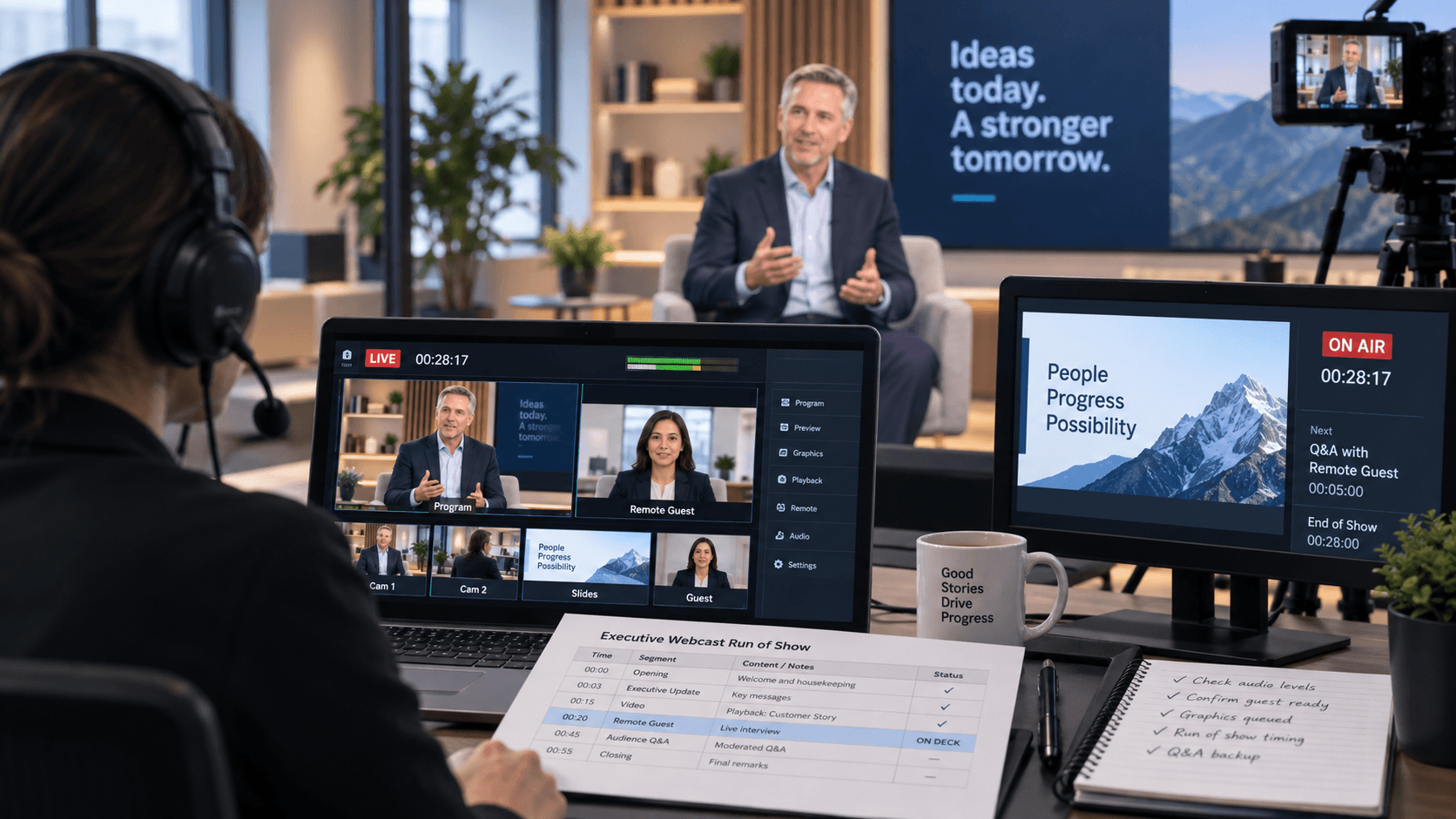
Executive Webcast Run of Show That Holds Up
An executive webcast can fail without a single camera, switcher, or encoder actually breaking.
The CEO walks on before the holding slide clears. A product demo appears on the confidence monitor but not in the webcast. A moderator introduces a remote guest before return audio is ready.
An executive webcast run of show prevents those failures by turning a high-visibility presentation into a controlled sequence of standbys, GO cues, confirmations, transitions, and fallback decisions.
For corporate communications, investor updates, leadership town halls, product launches, and executive broadcasts, the run of show is not simply an agenda with more columns.
It is the live operating document that tells every department what happens next, what source is live, who owns the decision, and what the crew does when the plan changes.
What an Executive Webcast Run of Show Needs to Control
An executive audience sees the finished program.
The production team manages everything underneath it:
- Cameras
- Presentation feeds
- Playback
- Graphics
- Microphones
- Remote contributors
- Confidence monitors
- Teleprompter
- Streaming encoders
- Platform permissions
- Recording
- Internet connectivity
The run of show should connect all of those systems to each audience-facing moment.
Use One Clock
Everyone involved needs the same time reference.
That includes:
- Show caller
- Technical director
- Stage manager
- Audio
- Graphics
- Playback
- Streaming operator
- Remote guest producer
- Client lead
If the broadcast starts at 9:00 AM Pacific, the entire team should understand exactly what that means.
Do not rely on several laptop clocks that may be a few seconds apart.
For time-sensitive executive programs, even small timing differences can create confusing cue calls.
Separate What the Audience Sees, What the Presenter Sees, and What the Crew Hears
These are three different experiences.
The audience might see:
- CEO camera
- Slides
- Lower thirds
- Remote guest
- Playback
The presenter might see:
- Current slide
- Next slide
- Timer
- Remote guest return
- Teleprompter
The crew may hear:
- Standby calls
- GO cues
- Technical warnings
- Stage-manager updates
The run of show should make those distinctions clear.
Build the Show Around Cues, Not Agenda Items
An agenda might say:
9:10 AM — CEO Keynote
That is not enough for production.
A production cue needs to describe how the segment begins.
For example:
09:09:30 — STANDBY
Standby Open Video, CEO Mic, Cam 1, Lower Third, CEO Deck.09:10:00 — GO
GO Open Video.
Audio to webcast and room.
Cam 1 ready for CEO walk-on.
Stage manager releases CEO at video out.
Take Cam 1.
Lower third GO after CEO settles.
Presentation A ready next.
That is an executable cue.
Use Consistent Cue Fields
A practical executive webcast run of show may include:
- Scheduled time
- Duration
- Cue number
- Segment name
- Show caller instruction
- Video source
- Audio action
- Graphics
- Presenter action
- Remote guest status
- Webcast output
- Contingency
- Rehearsal status
The goal is not to make the spreadsheet larger.
The goal is to make the next action obvious.
Transitions Deserve More Detail Than Main Segments
The most exposed moments are often transitions.
Examples:
- Holding slide → show open
- Open video → CEO walk-on
- CEO → remote guest
- Camera → product demo
- Demo → panel
- Program → end slate
Those transitions involve multiple departments changing state at the same time.
“Bring up remote guest” is too vague.
A better cue might be:
Confirm remote guest audio.
Take guest full screen.
Hold CEO camera in preview.
Standby split screen.
GO split screen on moderator question.
That gives video, audio, and production a shared plan.
Playback Needs Its Own Cue Discipline
Executive webcasts often depend on:
- Open videos
- Product reels
- Stingers
- Walk-in loops
- Backup demo recordings
The playback system should be organized around the run of show.
Our guide to corporate event video playback covers Millumin, Mitti, ProVideoPlayer, PIXERA, wide canvases, 16:9 playback, lower thirds, and backup playback workflows.
For every critical clip, define:
- Approved filename
- Duration
- Audio
- Primary source
- Backup source
- End behavior
Live Product Demos Need a Fallback
Live software demos create risk because they depend on more than playback.
A demo may require:
- Dedicated computer
- Network access
- Screen capture
- Confidence return
- Presenter control
For a critical executive demo, prepare a fallback.
That may be:
- Approved backup recording
- Static screenshots
- Presenter camera full screen
- Alternate discussion segment
The fallback should be written into the run of show before the live program.
Define Ownership at Every Critical Moment
Senior stakeholders may have editorial authority, but live execution still needs clear operational ownership.
Define who owns:
- Content approval
- Show calling
- Video program
- Audio
- Graphics
- Playback
- Remote guests
- Streaming health
- Stage movement
- Emergency escalation
A client lead should have one clear path to the caller.
They should not independently cue cameras, playback, and graphics through separate conversations.
The Show Caller and TD Are Not Always the Same Role
Role definitions vary between productions.
On some executive webcasts, the show caller may also be the technical director.
On larger programs, the responsibilities are usually better separated.
The show caller manages the overall sequence.
The TD or relevant video operator owns the technical video execution.
What matters is that the production team knows who calls the cue and who executes it.
The Run of Show Must Match the Signal Flow
The run of show does not replace the technical diagram.
It activates it.
A webcast may include:
- Multiple cameras
- Presentation A
- Presentation B
- Playback
- Remote video
- Graphics
- Program record
- Webcast encoder
Our guide to conference signal flow covers how those sources and destinations should be documented and tested.
Screen Management and Broadcast Switching Have Different Jobs
Complex webcasts may use both a production switcher and a screen-management processor.
A Barco E2 or Encore3 may handle:
- Presentation scaling
- Screen layouts
- Confidence-monitor destinations
- Multi-screen compositions
The broadcast switcher may handle:
- Camera program
- Graphics keys
- Webcast program
Barco’s Event Master platform is designed for professional screen-management workflows across multiple display destinations.
Name Sources the Way Operators Actually See Them
Avoid vague labels such as:
- Laptop
- Video
- Guest
Use labels such as:
- PRES-A CEO DECK
- PRES-B BACKUP
- PB-A OPEN VIDEO
- RCV-1 REMOTE GUEST
- CAM-1 CEO
Use the same naming across:
- Run of show
- Multiview
- Switcher
- Screen processor
- Playback system
- Operator notes
Confidence Monitors Need Their Own Plan
A confidence-monitor failure may never reach the webcast audience, but it can seriously disrupt an executive.
Define what each presenter sees:
- Current slide
- Next slide
- Timer
- Program
- Remote guest
- Notes
Also define what happens if confidence disappears.
Possible fallback options include:
- Secondary confidence monitor
- Printed notes
- Teleprompter fallback
- Stage-manager verbal cue
Remote Contributors Need a Separate Pre-Show Process
Remote presenters should not first connect five minutes before their segment.
Test:
- Camera
- Microphone
- Internet
- Return video
- Return audio
- Mix-minus
- Screen sharing
- Backup contact method
If the production uses Zoom Events or Webinars, Zoom supports livestreaming to its event environment or custom streaming destinations, and hosts can control when livestreaming actually begins. Zoom Events livestreaming documentation
That platform behavior should be understood before show time rather than discovered live.
Microsoft Teams Requires Its Own Platform Checks
For Teams-based executive events, verify the specific event configuration and external-encoder permissions in advance.
Microsoft currently supports RTMP-In workflows for meetings and events using external hardware or software encoders, subject to the correct policies and configuration. Microsoft Teams RTMP-In documentation
That means platform access, stream keys, permissions, firewall behavior, and encoder connectivity should be checked before rehearsal.
Vimeo and Other Streaming Platforms Need End-to-End Testing
Do not assume that because the encoder is sending, the audience is receiving correctly.
Vimeo’s current live-event workflow supports external encoders using RTMP/RTMPS and SRT, depending on the event configuration. Vimeo live-event documentation
Test:
- Encoder connection
- Ingest
- Player
- Authentication
- Captions
- Viewer access
Internet Redundancy Should Be in the Run of Show
If the webcast matters, the network is part of the production system.
Document:
- Primary internet
- Backup internet
- Who monitors it
- Who authorizes the switch
- What the show caller needs to know
Our guide to livestream internet failover setup covers WAN failover, bonding, cellular backup, monitoring, and forced-failure testing.
Technical Rehearsal Turns the Document Into a Real Show
A table read is useful.
It is not a technical rehearsal.
During rehearsal, run the real system:
- Executive deck
- Playback
- Remote contributors
- Graphics
- Camera transitions
- Audio
- Confidence monitors
- Webcast platform
Our technical rehearsal planning guide covers how to validate those workflows before doors or go-live.
Rehearse at Real Pace
Executive habits matter.
A speaker may:
- Advance slides faster than expected
- Walk before the cue
- Ignore the lectern
- Extend a segment
- Ask for an unscheduled demo
Rehearsing at realistic pace exposes those issues before they affect the audience.
Add a Practical Contingency Column
Do not write a paragraph beside every cue.
Use contingency notes for the moments that carry real risk.
Examples:
- Remote guest loses video: Continue audio-only on moderator camera if approved.
- Remote guest drops completely: Moderator continues to next question or alternate segment.
- Live demo fails: Roll approved backup recording.
- Presentation fails: Take CEO camera full screen while backup deck is restored.
- Playback fails: Take alternate show look and move forward.
- Internet failure: Activate tested backup network path.
Decide What Can Be Cut Before the Show Runs Late
Executive programs frequently change length.
Decide in advance:
- Which segments can shorten
- Which videos can be removed
- Whether Q&A can be reduced
- Who approves the change
That prevents the crew from improvising schedule recovery during the webcast.
Keep the Main ROS Readable
A 40-page cue document can become harder to use than a disciplined 5-page caller script.
Keep the live document focused.
Use separate references for:
- Signal flow
- Camera plan
- Contact list
- Platform credentials
- Technical settings
- Network details
The run of show should remain readable under pressure.
Executive Webcast Run of Show Checklist
- One master clock confirmed
- Final speaker order confirmed
- Executive arrival times confirmed
- Presentation versions confirmed
- Playback files approved
- Graphics loaded
- Lower thirds verified
- Camera assignments confirmed
- Microphone assignments confirmed
- Confidence-monitor feeds confirmed
- Remote contributors tested
- Mix-minus tested
- Streaming encoder tested
- Platform ingest confirmed
- Viewer player tested
- Internet backup tested
- Backup presentation tested
- Backup playback tested
- Local recording verified
- Critical contingencies documented
- Cuttable segments identified
- Escalation contacts confirmed
- Final rehearsal completed
Make the Last Page Useful
The final page should include the information the crew may need after the show begins.
Consider including:
- Crew call
- Rehearsal call
- Executive arrival windows
- Go-live time
- Primary comms channels
- Client escalation contact
- Streaming-platform contact
- Recording responsibility
- Post-show asset handoff
The webcast does not end when the end slate appears.
The production team may still need to confirm:
- Recording integrity
- Clean master capture
- Platform archive
- Chat or Q&A records
- Approved media preservation
A Good Executive Webcast Run of Show Reduces Decisions During the Live Program
The purpose of an executive webcast run of show is not to predict every possible problem.
It is to make the important decisions early enough that the production team does not need to invent the response while the CEO is live.
Every useful standby creates preparation time.
Every clear GO cue removes interpretation.
Every tested fallback gives the crew somewhere safe to go.
Executives should be able to focus on the message because the production team has already decided what happens next.
Need Executive Webcast Production Support?
AV Land provides executive webcast production, camera systems, playback, screen management, graphics, streaming, recording, technical direction, and hybrid-event support throughout the San Francisco Bay Area and beyond.
Contact AV Land to discuss your next executive broadcast.
Executive Webcast Run of Show FAQ
What is an executive webcast run of show?
It is the live production document that coordinates the timing and technical execution of an executive broadcast. It can include cameras, presentation feeds, playback, graphics, audio, remote guests, streaming, stage movement, and contingencies.
How is a webcast run of show different from an agenda?
An agenda explains what the audience is scheduled to see. A webcast run of show explains how the production team executes those moments, including standbys, GO cues, sources, technical states, transitions, and fallback plans.
Who should own the executive webcast run of show?
One person should control the master version, typically the producer, show caller, or another designated production lead. Technical departments should review and confirm the cues relevant to their systems.
Should remote speakers be included in the run of show?
Yes. Their connection time, return feeds, audio status, segment timing, standby process, and fallback plan should be clearly documented.
Should internet failover be part of the run of show?
For a critical webcast, yes. The document should identify the backup path, who owns the switch, and what information the show caller needs if the primary connection becomes unstable.
How detailed should contingency notes be?
Keep them concise and action-oriented. Critical cues should identify the immediate fallback rather than a long troubleshooting procedure.