


Top Event Streaming Failure Points to Prevent
Event streaming failure points rarely begin with one dramatic equipment failure.
A livestream may look perfect inside the ballroom while remote viewers receive a frozen keynote slide, distorted audio, unreadable graphics, delayed video, or no program at all.
Most failures develop from smaller planning gaps across internet access, signal flow, audio routing, encoding, platform configuration, content control, monitoring, and operator communication.
For corporate conferences, executive webcasts, product launches, town halls, and hybrid events, the stream is part of the live program—not an add-on created after the room system is finished.
A reliable production treats the online audience as a separate destination with its own video composition, audio mix, network path, monitoring, records, staffing, and recovery plan.
Event streaming failure points at a glance
- Unverified internet: The venue connection is shared, unstable, restricted, or tested from the wrong location.
- No independent backup path: The primary and backup connections depend on the same venue infrastructure.
- Single-point signal failures: One cable, converter, switcher output, audio feed, or encoder can stop the stream.
- Wrong online program: Remote viewers receive the ballroom feed without stream-specific camera and presentation layouts.
- Poor broadcast audio: The stream receives an unsuitable room mix, missing playback, or unclear audience questions.
- Encoder misconfiguration: Resolution, frame rate, bitrate, codec, audio channels, or platform destination are incorrect.
- Platform-access problems: Account permissions, event roles, security settings, or stream keys are not confirmed.
- Untested content: Presentations, videos, graphics, and presenter laptops behave differently during the show.
- Unprepared remote guests: Camera, microphone, internet, screen sharing, and return paths are not tested.
- No audience-side monitoring: The crew watches the production output but not the stream viewers actually receive.
- Unclear incident authority: Nobody knows who can switch to backup, hold the show, or notify the client.
- No local master recording: The production relies entirely on the platform archive.
Top event streaming failure points in corporate production
1. Treating venue internet as guaranteed
A venue may describe its internet as dedicated, but the production team needs to understand what that term means.
It may refer to:
- A dedicated Ethernet port
- A dedicated VLAN
- A reserved bandwidth allocation
- A separate internet circuit
- A network shared with other meeting rooms
Those are not equivalent.
Before the event, confirm:
- Whether the service is wired or wireless
- Whether bandwidth is dedicated or best effort
- Where the network handoff will be located
- Whether other rooms share the service
- Firewall and port restrictions
- Device-registration requirements
- Static or dynamic IP addressing
- Venue IT support during show hours
- The escalation contact if the service fails
Upload speed is only one part of internet performance.
Packet loss, jitter, changing latency, firewall restrictions, unstable routing, and network congestion can damage a stream even when a brief speed test looks acceptable.
Test the connection from the actual encoder location using the real cabling, network configuration, encoder, bitrate, and streaming destination.
For a deeper network plan, see our guide to redundant internet for livestreams.
2. Using two connections that can fail together
Two network cables do not automatically create redundancy.
If both paths depend on the same:
- Venue switch
- Firewall
- ISP
- Fiber entrance
- Electrical circuit
- Network-management system
one failure may remove both connections.
Path diversity is more important than connection count.
A higher-risk webcast may use a venue hardline as the primary connection and a separate bonded cellular system as the secondary path.
LiveU describes its LRT protocol as being designed to bond multiple wired, wireless, and cellular IP connections into a resilient contribution path. That is different from connecting a laptop to Ethernet and Wi-Fi without a bonding service.
Test the primary path, backup path, and actual transition between them. A settings screen showing “failover enabled” does not prove the live session will continue cleanly.
3. Building one signal path with no recovery option
The stream can fail before it reaches the internet.
The complete signal chain may include:
- Cameras
- Presentation computers
- Video playback
- Graphics
- Audio console
- Video switcher
- Screen-management processor
- Router
- Converters
- Embedding or de-embedding
- Encoder
- Network
- Streaming platform
Any critical device or cable without an alternate path can become a single point of failure.
Redundancy should match the consequence of interruption.
A lower-risk internal town hall may need:
- A backup program output
- A second encoder or fast replacement path
- A backup internet connection
- A local recording
A public product launch or investor webcast may justify:
- Primary and backup encoders
- Independent internet paths
- Duplicate audio feeds
- Backup playback systems
- Alternate video routing
- Spare converters
- Independent recording
- Protected power
The goal is not to duplicate every piece of equipment. It is to identify which failures would stop the online audience from receiving the program and build practical recovery paths around those points.
4. Sending the ballroom screen feed as the stream program
The in-room screen system and online program often need different compositions.
People inside the venue may simultaneously see:
- The presenter on stage
- A large LED wall
- Side screens
- A product demonstration
- A moderator or panel
A remote viewer sees only the selected online frame.
A wide ballroom shot may show the complete stage but make presentation text unreadable on a laptop or phone. A full-screen slide may be readable but remove the presenter entirely.
Build the stream as its own program using intentional layouts such as:
- Full-screen presenter
- Full-screen presentation
- Presenter beside presentation
- Panel wide shot
- Remote guest beside moderator
- Product demonstration with presenter inset
- Audience Q&A
Confirm that graphics, slides, captions, demos, and lower thirds are readable at the actual streaming resolution—not only on the production multiview.
5. Asking the screen-management processor to do every video job
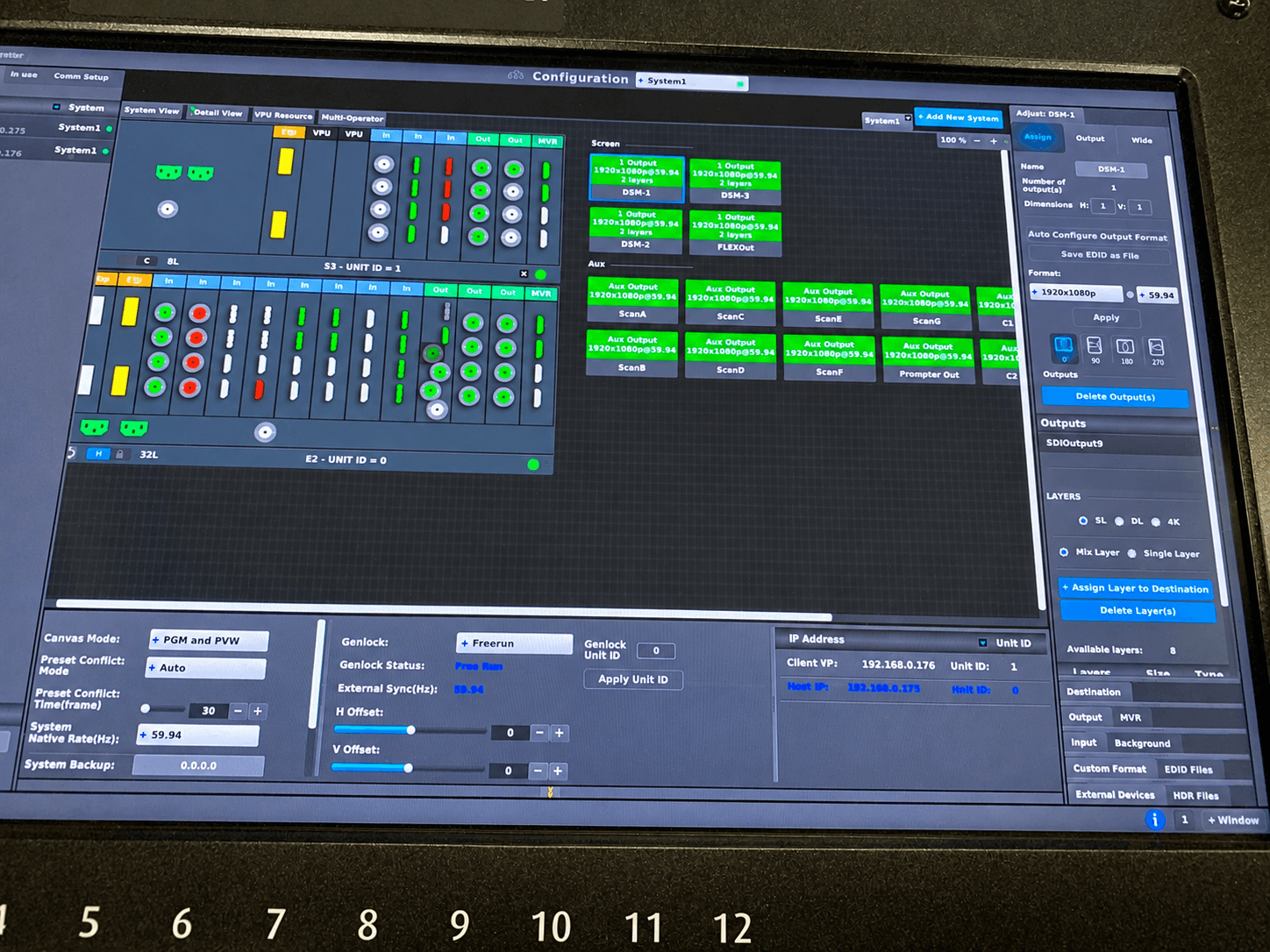
Screen-management systems such as Barco E2 or Encore3 can be valuable when the ballroom uses wide LED canvases, independent destinations, layered presentation layouts, or complex screen routing.
Barco describes Event Master as supporting screen mapping, source selection, windowing, seamless switching, effects, and multi-screen control. :contentReference[oaicite:2]{index=2}
However, the screen processor does not automatically need to create the complete livestream program.
Depending on the event:
- The production switcher may handle camera cuts and stream graphics.
- The E2 may handle the stage canvas and in-room destinations.
- The router may distribute clean presentation and camera feeds.
- The encoder may receive a dedicated broadcast program.
Keep each device doing the work it handles best. Forcing the room and stream into one composition can create unnecessary compromises.
Use the official name Encore3, not “E3,” in technical documentation.
6. Assuming the front-of-house audio mix will work online
The room mix and broadcast mix are related, but they are not always identical.
In-person attendees hear:
- PA reinforcement
- Natural room sound
- Audience reaction
- Some unamplified speech
- Stage sound
Remote viewers hear only what the production sends to the encoder.
A stream mix should account for:
- Presenter microphones
- Panel microphones
- Video playback
- Walk-in and walk-out music
- Remote contributors
- Audience Q&A
- Room reaction microphones where appropriate
- Interpretation or caption feeds
- Emergency microphone changes
Common streaming-audio failures include:
- Speech that is too quiet
- Clipping
- Missing playback audio
- Excessive room noise
- Feedback
- Hum
- Incorrect embedded channels
- No audience microphone online
- Remote guests hearing themselves back
Monitor the feed leaving the audio console and the audio arriving at the streaming platform.
7. Failing to create a proper mix-minus for remote guests
A remote contributor normally needs to hear the room and program without receiving a delayed copy of their own voice.
If their return includes themselves, the result may be echo, hesitation, or complete loss of conversational timing.
Confirm:
- What the remote presenter hears
- What the room hears
- What the online audience hears
- Who controls the return mix
- What happens if the remote platform changes devices
- How the guest is contacted off-air
Test the complete conversation workflow, not only whether the guest can join the call.
8. Encoder settings that do not match the platform
A capable encoder can still produce an unreliable stream when its settings do not match the platform or connection.
Confirm:
- Resolution
- Frame rate
- Video codec
- Audio codec
- Video bitrate
- Audio bitrate
- Keyframe interval
- Audio-channel mapping
- Streaming protocol
- Destination address
- Stream key or authentication
- Primary and backup profiles
Also verify whether the encoder is:
- Actually publishing
- Dropping frames
- Reducing bitrate
- Overheating
- Running out of storage
- Receiving the expected audio and video
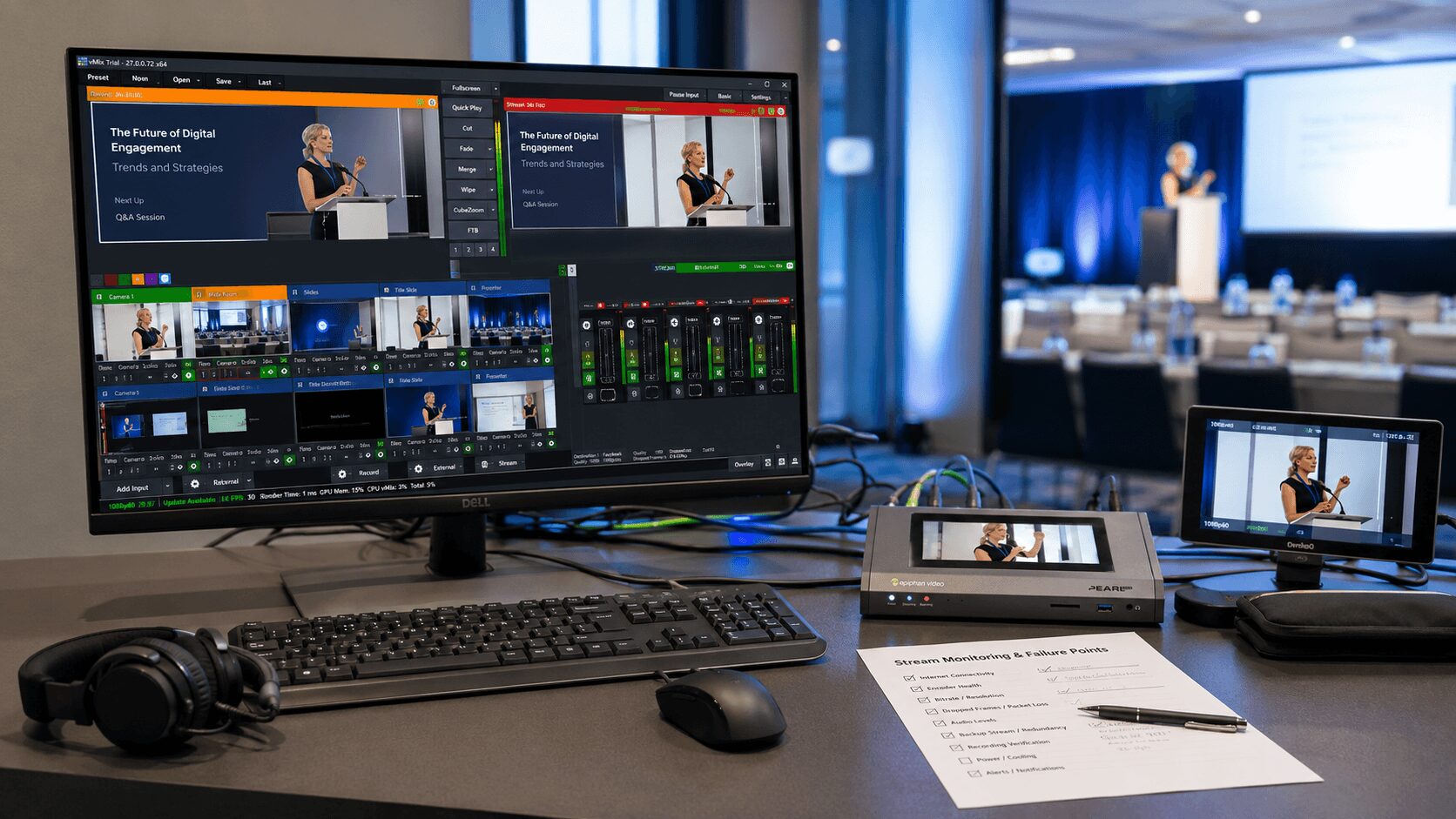
Epiphan describes Pearl Mini as an integrated video encoder, streamer, switcher, and recorder, with touchscreen and browser-based control. Its built-in monitoring is useful, but the platform return should still be checked separately. :contentReference[oaicite:3]{index=3}
9. Platform permissions and event settings confirmed too late
Sometimes the production signal reaches the platform correctly, but the event cannot begin because the account or event configuration is incomplete.
Possible problems include:
- Incorrect account
- Missing host or producer permissions
- Expired credentials
- Incorrect event date or time
- Wrong privacy setting
- Missing stream key
- Webinar or town-hall license limitations
- Incorrect presenter roles
- Unconfirmed recording permissions
- Captions not enabled
- Audience access blocked
Confirm platform access during pre-production and again before rehearsal.
Keep credentials secure, but make sure an authorized backup person can access the event if the primary platform operator becomes unavailable.
10. Untested presentation and playback content
Files opening on a laptop does not mean they are ready for a livestream.
Test:
- Fonts
- Embedded videos
- Audio
- Aspect ratio
- Frame rate
- HDCP
- Animations
- Presenter view
- Screen sharing
- Graphics safe areas
- Readability at streaming resolution
Last-minute presenter laptops create additional risk because they may change resolution, output HDCP-protected content, display notifications, sleep, or require network credentials.
Use production-controlled presentation machines whenever practical and keep a synchronized backup.
11. Skipping a full-system rehearsal
A line check confirms that devices produce signals. A rehearsal confirms that the production can execute the program.
Run the actual workflow:
- Cameras switched live
- Presentations advanced
- Videos played with audio
- Graphics triggered
- Remote presenters introduced
- Stream started at the destination
- Platform return monitored
- Records started
- Internet failover tested
- Backup encoder procedure tested
Rehearsal is where teams catch:
- Mismatched frame rates
- Incorrect aspect ratios
- HDCP problems
- Missing audio channels
- Unreadable graphics
- Platform-role issues
- Delayed remote returns
- Incorrect confidence feeds
- Unusable backup paths
Failure testing can feel uncomfortable because it deliberately creates problems. That is exactly why it is useful.
12. Monitoring only the switcher multiview
The production multiview shows what the switcher is creating. It does not prove that the online audience is receiving it correctly.
The platform may experience:
- Audio/video sync drift
- Bitrate reduction
- Resolution changes
- Buffering
- Platform-side delay
- A disconnected ingest
- Incorrect event routing
Monitor the delivered stream using:
- A separate viewer device
- A network path separate from the encoder where practical
- Headphones or speakers for audience-side audio
- The platform’s ingest-health dashboard
- The encoder’s performance and dropped-frame indicators
AVIXA’s hybrid-production guidance specifically emphasizes continuous monitoring of video quality, audio clarity, connectivity, and device performance throughout the event. :contentReference[oaicite:4]{index=4}
13. Nobody owns the online audience experience
If everyone assumes someone else is monitoring the livestream, no one is responsible when it degrades.
Assign a streaming engineer, producer, or dedicated operator to watch:
- Program video
- Program audio
- Encoder status
- Internet paths
- Platform ingest
- Audience return
- Remote presenters
- Captions
- Chat or Q&A escalation
- Local records
- Backup readiness
This person needs direct communication with video control, audio, the show caller, venue IT, and the client producer.
14. Unclear authority during a live failure
A technical issue becomes more disruptive when the crew has not defined who makes decisions.
During a failure, the production may need to:
- Hold a presenter
- Switch to backup internet
- Move to a backup encoder
- Reduce stream bitrate
- Replace a failed audio feed
- Roll backup content
- Notify the online audience
- Update the client
- Continue the room program while repairing the stream
Create an incident-escalation plan during pre-production.
Define:
- Who identifies the problem
- Who has authority to trigger failover
- Who communicates with the show caller
- Who contacts venue IT
- Who updates the client
- When the program should pause
- When the room should continue
Keep communication concise: what failed, what action is underway, and whether the program needs to change.
15. Remote presenters with unverified systems
Remote participants may join using:
- An unmanaged home or office network
- Bluetooth earbuds
- A VPN
- Poor lighting
- An internal laptop microphone
- An outdated browser
- An unapproved presentation version
Schedule a technical check with every important remote presenter.
Confirm:
- Wired or stable internet access
- Camera framing
- Lighting
- Microphone quality
- Headphones or echo control
- Platform access
- Screen-sharing permission
- Presentation version
- Return video
- Return audio
- Off-air communication
- Fallback phone number
For high-stakes segments, consider a managed remote kit, local technician, pre-recorded backup, or alternate connection method.
16. Relying only on the platform recording
A platform recording may be convenient, but it should not automatically be the only master record.
If the internet, encoder, platform, or account fails, the cloud archive may be incomplete or lower quality than the production feed.
Depending on the event, record locally:
- Switched program
- Clean presentation feed
- Individual cameras
- Program audio
- Audio multitracks
- Remote contributors
Local records do not prevent a live interruption. They protect the final asset and provide options for on-demand delivery, repaired playback, and post-event editing.
Event streaming prevention checklist
Before load-in
- Confirm platform, audience type, privacy, and access requirements.
- Define stream resolution, frame rate, codec, and target bitrate.
- Map the complete video and audio signal flow.
- Identify critical single points of failure.
- Reserve primary and backup internet paths.
- Assign streaming, audio, video, and platform responsibilities.
- Collect and test presentations, videos, graphics, and lower thirds.
- Schedule remote-presenter technical checks.
- Define the local recording plan.
- Create the escalation and recovery plan.
During setup
- Test every source through the complete delivery path.
- Confirm room program and stream program independently.
- Verify the stream audio mix.
- Check mix-minus and remote returns.
- Test primary and backup encoders.
- Test primary and backup internet independently.
- Verify platform credentials and permissions.
- Check local recording storage and formats.
- Protect power, network, and physical cable paths.
During rehearsal
- Run the actual stream to the intended platform.
- Monitor from an audience-side device.
- Test presentations, videos, remote guests, graphics, and captions.
- Force an internet failure.
- Test encoder recovery.
- Test backup content.
- Confirm show-caller and streaming cues.
- Document and correct every failure.
Before doors
- Primary and backup internet online
- Encoder publishing to the correct event
- Program video and audio confirmed
- Viewer-side return checked
- Local records ready
- Remote guests connected or scheduled
- Platform operator logged in
- Venue IT contact reachable
- Backup procedures distributed
- Every department has reported ready
During the show
- Monitor encoder and platform health continuously.
- Listen to the delivered stream audio.
- Watch presentation and graphics readability.
- Track internet and bonded-link health.
- Confirm records remain active.
- Keep backup systems powered and ready.
- Communicate developing problems before they become visible failures.
Plan for recovery—not perfection
No live-production system is immune to failure.
The practical goal is fast recovery with minimal audience impact.
That requires:
- Prebuilt backup outputs
- Tested internet failover
- Backup encoders
- Duplicate presentation and playback files
- Spare adapters and converters
- Local recording
- Documented settings
- Clear operator authority
- Audience-side monitoring
A prepared crew does not promise that nothing will go wrong. It makes sure that one problem does not become the entire show.
Need help preventing livestream failures?
AV Land provides multi-camera livestream production, presentation systems, hardware encoding, audio, screen management, redundant internet planning, local recording, remote-contributor support, and technical direction throughout the San Francisco Bay Area.
We plan the room, online program, signal flow, network, platform, monitoring, and recovery workflow as one coordinated production system.
Explore our corporate livestream production services and corporate event services.
Send us your event date, venue, audience size, platform, stream requirements, remote-presenter needs, production schedule, and budget range to begin planning the webcast.
Frequently asked questions
What is the most common livestream failure?
There is no single universal cause. Common failures include unstable internet, incorrect audio routing, encoder or platform misconfiguration, untested content, missing remote returns, and inadequate monitoring.
Is fast internet enough for a reliable event stream?
No. The connection also needs sustained upload capacity, low packet loss, stable latency, suitable firewall settings, and a tested recovery path. The production must verify the real stream from the actual encoder location.
Should a livestream use the same video feed as the ballroom screens?
Not automatically. Ballroom screens and remote viewers often need different layouts. The online program should be designed for readability, presenter visibility, graphics, and the device sizes used by viewers.
Should a livestream use the front-of-house audio mix?
Sometimes, but the stream often benefits from a dedicated mix or additional processing. Remote viewers need clear microphones, playback, audience questions, remote callers, and room reaction without depending on natural room sound.
What should be monitored during a livestream?
Monitor program video, audio, encoder status, dropped frames, internet health, platform ingest, viewer-side return, remote presenters, captions, and local recordings.
How should internet failover be tested?
Run a private stream using the actual encoder and platform, then disconnect the primary internet connection. Observe whether the encoder remains connected, how long recovery takes, and what viewers see and hear.
Do all corporate livestreams need backup encoders?
Not all events need the same level of redundancy. The decision should follow the consequence of interruption, audience size, event visibility, budget, and how quickly the program can recover.
Why is local recording important?
Local recording protects the final asset if the internet, encoder, platform, or cloud archive fails. It can also provide higher-quality material for post-event delivery.