


How to Manage Confidence Monitors for Live Corporate Shows
A confidence monitor can save a keynote when a presenter loses their place. It can also create a highly visible failure when the screen shows the wrong slide, an unmasked desktop, or a delayed feed. Knowing how to manage confidence monitors means treating them as a separate show system, not as an extra display added after the main screen package is built.
For conferences, executive presentations, product launches, and hybrid broadcasts, the confidence system has one job: give presenters the information they need without exposing production mechanics to the audience. That requires intentional signal design, clear content ownership, correct placement, and an operator who understands the show flow.
Start With the Presenter’s Actual Need
“Confidence monitor” can mean different things depending on the program. A CEO delivering a tightly timed keynote may need the current slide, the next slide, a clock, and a speaker timer. A panel moderator may only need question prompts and a session countdown. A product demonstrator may need a clean return of the demo computer, while a remote guest needs program video and a return audio feed.
Do not assume that every presenter needs the same output. During preproduction, identify what each person must see, what they should never see, and who has approval to change the screen layout. This avoids a common show-day problem: an executive asks for notes on the monitor five minutes before doors, but the playback and switching system was never configured to deliver them.
The most common confidence layouts include current presentation content, presenter notes, a next-slide preview, elapsed or remaining time, show cues, and a clean program return. For high-stakes sessions, separate those elements into purpose-built views rather than crowding everything onto one screen. A monitor full of tiny windows is not confidence. It is distraction.
Design the Confidence Monitor System Before Load-In
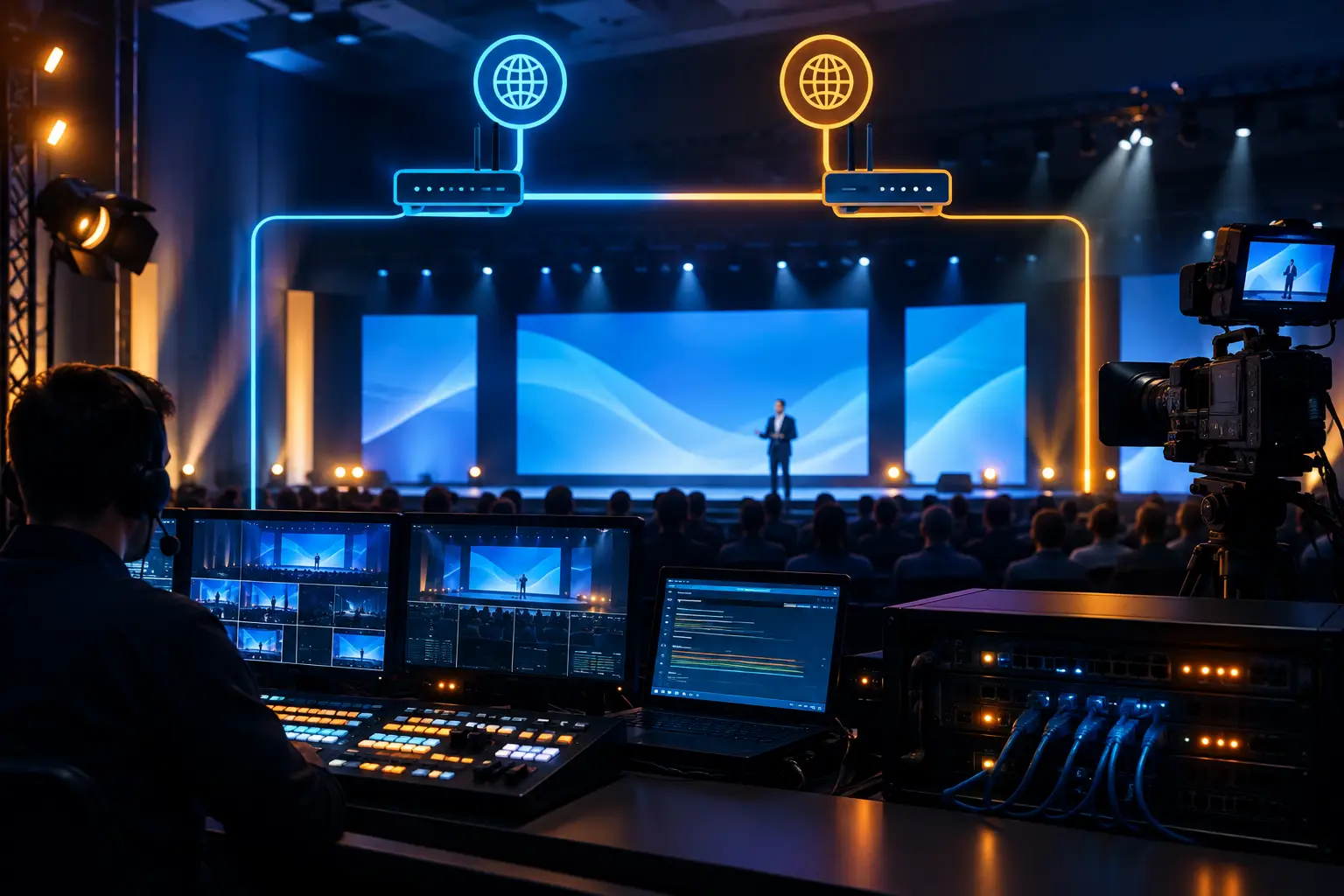
Confidence monitoring starts with signal flow. The display at the lectern is the final endpoint of a chain that may include presentation playback, a graphics computer, video switcher, multi-viewer, video processor, distribution amplifier, fiber transport, and display scaling. Every device in that chain needs a defined role.
For a typical corporate keynote, the main LED wall or projection system may receive a polished program output, while the presenter monitor receives a separate downstream key or auxiliary output. That distinction matters. The audience can see a full-screen branded presentation while the speaker sees the slide with a timer, speaker notes, or a discreet production cue.
A Barco E2 or E3 workflow is particularly useful on shows with multiple destinations. It lets the video team create independent outputs for the room, broadcast, backstage, and presenter positions without relying on improvised splits. The confidence output should be treated as a dedicated destination with its own canvas, layers, labels, and testing procedure.
Choose the Right Display and Position
Screen size, brightness, and placement depend on stage geometry and presenter behavior. A floor monitor that works for a seated panel may be difficult to read for a presenter standing ten feet behind a lectern. A display mounted too low forces the presenter to look down constantly. One mounted too high creates an equally obvious upward eye line.
For most keynote stages, place confidence monitors where presenters can glance naturally without turning away from the audience. Lectern displays, low-profile floor monitors, and discreet side-stage displays each have a place. The right choice depends on the stage deck, camera angles, presenter movement, and whether the event is being recorded or streamed.
Brightness deserves attention as well. A display that looks acceptable in a ballroom during rehearsal can become unreadable once stage lighting is brought to show levels. Test confidence monitors with the final lighting look, not under work lights. If the speaker wears glasses, check reflections from both the screen and front light.
Build Separate Feeds for the Room, Presenter, and Stream
The main audience feed, confidence feed, and livestream feed should not automatically mirror one another. Each serves a different viewer.
The room audience may see presentation slides and video playback. The presenter may need those slides plus notes and timing. Online viewers may need camera shots, lower thirds, remote contributors, and slides arranged in a different composition. Sending the same output everywhere limits the production team and increases the chance of showing backstage information publicly.
Use clearly labeled outputs at every point in the chain. Labels such as “DSM 1 CURRENT,” “LECTERN NOTES,” “STREAM PROGRAM,” and “BACKSTAGE MULTIVIEW” are more useful than “AUX 3” when the room is dark and the show is moving quickly. Match those labels on the video router, processor, switcher, monitor frames, and show documentation.
Resolution and refresh rate should be locked and verified early. Confidence displays frequently introduce scaling issues, EDID conflicts, or unexpected aspect-ratio changes when connected through long HDMI runs or converters. Professional SDI, fiber, or HDBaseT transport can reduce risk on larger stages, but every path still needs validation at the final display.
Create a Show-Ready Confidence Layout
A clean confidence layout gives a presenter useful information at a glance. It should be readable from the actual standing position and should not require explanation during a live session.
Keep text large. Use high contrast. Avoid small timer windows, thin fonts, or low-opacity graphics that disappear under bright stage conditions. If a countdown clock is included, confirm whether the presenter needs time elapsed, time remaining, or both. A countdown that reaches zero without an agreed action can create unnecessary pressure, especially during executive Q&A.
For presentations with speaker notes, decide whether notes will come from the presenter’s own computer, a playback operator, or a dedicated presentation-management system. Each approach has trade-offs. Local presenter view is familiar to speakers but can be harder to standardize. A centrally managed output gives production more control but requires disciplined content intake and rehearsal.
When cues are needed, make them concise and operational. “Walk to center,” “Take questions,” or “Two minutes remaining” is useful. Paragraphs of instructions are not. The presenter should be able to absorb the cue without losing focus on the audience.
Assign an Operator and Rehearse the Handoffs
A confidence system needs an owner. On small sessions, that may be the playback operator. On complex programs, it may be a dedicated graphics or show-caller position. What matters is that one person is responsible for confirming the correct view before each walk-on and responding if the presenter requests a change.
The operator should work from a current run of show that identifies speaker order, content versions, walk-up music, slide changes, video playback, and timing cues. They also need a reliable communication path to the technical director, stage manager, and show caller. A confidence monitor is part of the live production ecosystem, not an isolated display.
Rehearsals should include the handoff between presenters. Verify what happens when one speaker exits PowerPoint presentation mode, when a video plays full screen, when a panel moves from slides to discussion, and when a remote caller joins the session. These are the moments when confidence outputs often drift away from the intended layout.
Plan for Failure Without Making It Obvious
No confidence system is complete without a fallback. At minimum, have a backup source available for critical presenter content and a known recovery path if the primary display loses signal. For executive keynotes, consider redundant transport, spare display capability, and backup playback files loaded on an independent machine.
Test power separately from signal. A monitor can have a valid video path and still fail because its power source was switched off with a stage utility circuit. Confirm that display sleep settings are disabled, input selection is locked where possible, and automatic firmware prompts will not interrupt the session.
If a confidence monitor fails during a live presentation, the response should be calm and direct. The show caller or stage manager can guide the presenter, while the video team moves to the backup path. Avoid troubleshooting menus on screen where a presenter or camera can see them. A prepared fallback is faster than a perfect diagnosis.
FAQ: Managing Confidence Monitors
Should a confidence monitor show the same image as the main screen?
Sometimes, but not by default. A basic keynote may only require the current slide. More complex sessions benefit from a separate feed that includes timing, notes, or presenter-specific cues while keeping the audience output clean.
How many confidence monitors does a keynote stage need?
It depends on stage width, presenter movement, and whether there is a lectern. A single display can work for a fixed-position speaker. Wide stages, panel discussions, and product demos often require multiple positions so presenters do not need to cross the stage to find information.
Can confidence monitors be used in a livestream?
Yes, but they should be designed alongside the broadcast workflow. The presenter may need a different view from both the in-room audience and online viewers. Camera framing also matters, since a poorly positioned monitor can create distracting eye lines in the webcast.
What should be tested before doors open?
Test every content source, display input, timer, cue layout, backup path, and communication handoff. Then test again under show lighting with the actual presenter standing in position. That final check catches visibility and placement problems that a control-room test will miss.
For Bay Area corporate productions where timing, executive presentations, and broadcast outputs all matter, AV Land can handle the confidence-monitor workflow as part of full-service event production. Request a quote with your agenda, stage plan, presentation format, and streaming requirements so the system is engineered before show day. The best confidence setup is the one a presenter barely notices because it gives them exactly what they need, exactly when they need it.